Free to startPrivate by defaultFriends RSVP without the app
What’s new in Conmigo
Every week’s changes, newest first: what you can do now that you couldn’t before.
Oct 5 to Oct 11, 2026
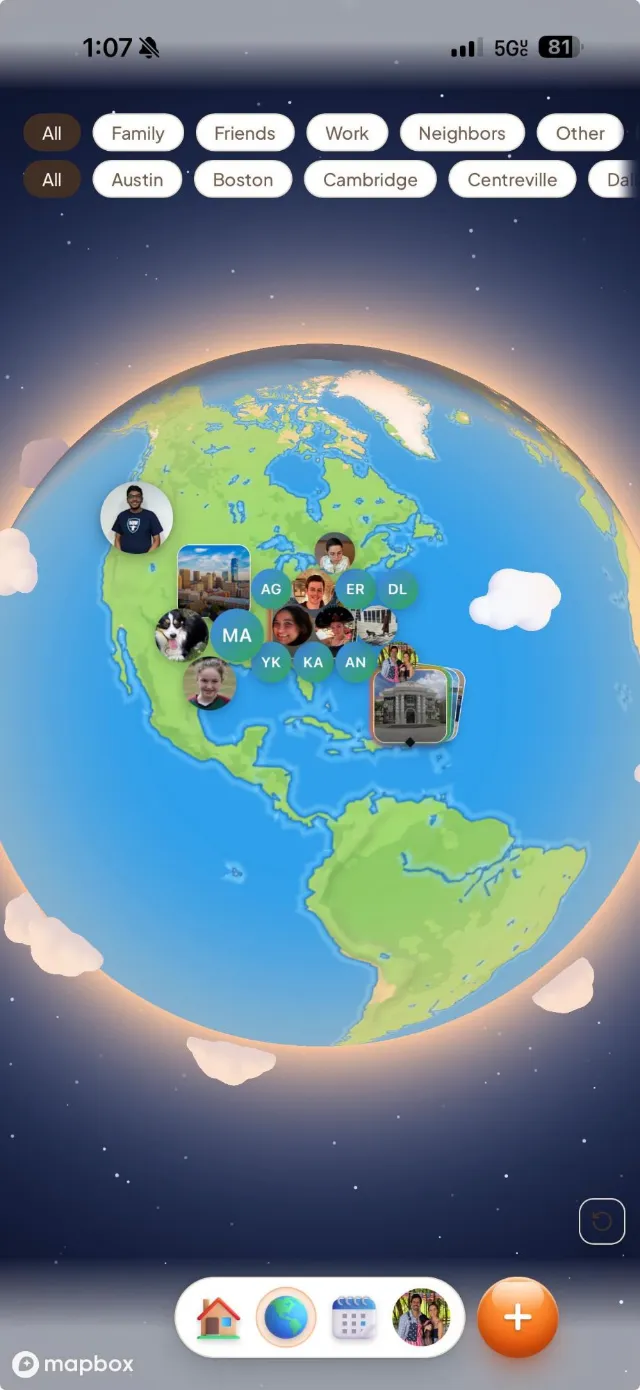
Zoom out on the Where map and see a cartoon globe
The map now pulls back to a friendly globe with day and night, paying for another calendar account is smoother on your phone, and picking a time spins round and round.
See the whole world on the Where map
Pinch out far enough and the map turns into a globe.
A cartoon globe. Zoomed out, you see calm land and sea, drifting clouds, a warm glow and stars around the edge.
Day and night. The shading follows the sun, and city lights come on across the night side.
Back to the map in one pinch. Zoom in and the globe fades into the regular map, with place names returning at the same moment.
Add another calendar account with less friction
Buying and connecting accounts got several fixes this week.
The paywall is a full page on your phone. It looks like a Settings page, with a back arrow, and the payment form has room to breathe.
Clear messages when checkout can’t start. You go back to the offer and are told whether you were charged and what to try next.
Backing out is safe. Tapping back right after Buy no longer leaves a blank page on your next try.
Returning buyers can check out again. Someone with an earlier purchase on file was blocked, and that is fixed.
Apple accounts in the iPhone app. You can add a second Apple account without being asked to buy a slot, and the slot count no longer shows in Settings > Info.
Set event times faster
The Start time and End time pickers feel like a real dial.
Wheels that go round. After 12 comes 1, and after :55 comes :00, in both directions.
AM and PM follow along. Pass 12 on the hour wheel and AM or PM flips with it. The date stays put.
Export PDF fits your phone
Find it in Settings under Exports & Subscriptions.
A page that scrolls. The Generate button and the preview are no longer cut off.
Dark mode stays on. Only the paper sheet is light, since the PDF is always light.
The app opens faster
Less to download before you see something.
Conmigo.io shows up sooner. The home page now starts with the headline and the dome of photos, then builds the rest.
Calendar, Home and Where load on their own. Switching tabs still happens without a spinner.
Nicer link previews. Sharing conmigo.io shows the same tagline everywhere, with a new picture.
Smaller improvements
A few more fixes.
Events without a time zone now sort by your own time zone, so a 3 pm event no longer lands ahead of a 10 am one.
Docs: on a phone, the row of categories scrolls to keep the one you are reading in view.
Changelog: a menu of weeks sits beside the entries.
Help pages now match today’s Settings names and steps.
The privacy notice names Google Analytics and PostHog. Microsoft Clarity has been removed.
Fonts are now hosted by Conmigo, so no page loads them from Google.
Sep 28 to Oct 4, 2026
Conmigo opens straight to your calendar, even offline
Your plans are saved on your phone, edits made without signal are sent later, and you can ask friends to share theirs.
Your calendar is there when you open the app
No sign-in page and no waiting on a loading screen.
Saved on your phone. Conmigo keeps a copy of your calendar, so your events are on screen the moment the app opens. It then checks for anything new and updates only what changed.
Still there with no connection. If your signal is slow or gone, you see your calendar as it was the last time you opened it.
Signing out clears it. If you sign out in another tab, or your account is signed out for you, the saved calendar is removed from the phone.
Make changes without a signal
Conmigo holds on to them and sends them when you are back online.
Edits, moves and deletes wait. Change an event, drag it to another day or delete it offline. It is sent once you reconnect, even if you closed the app first.
A small cloud shows what is waiting. Events with a change that has not been sent yet show a cloud on the month strips and in Today.
Logging out is quick. It finishes at once offline and within five seconds on a connection that hangs.
Ask a friend to share their calendar
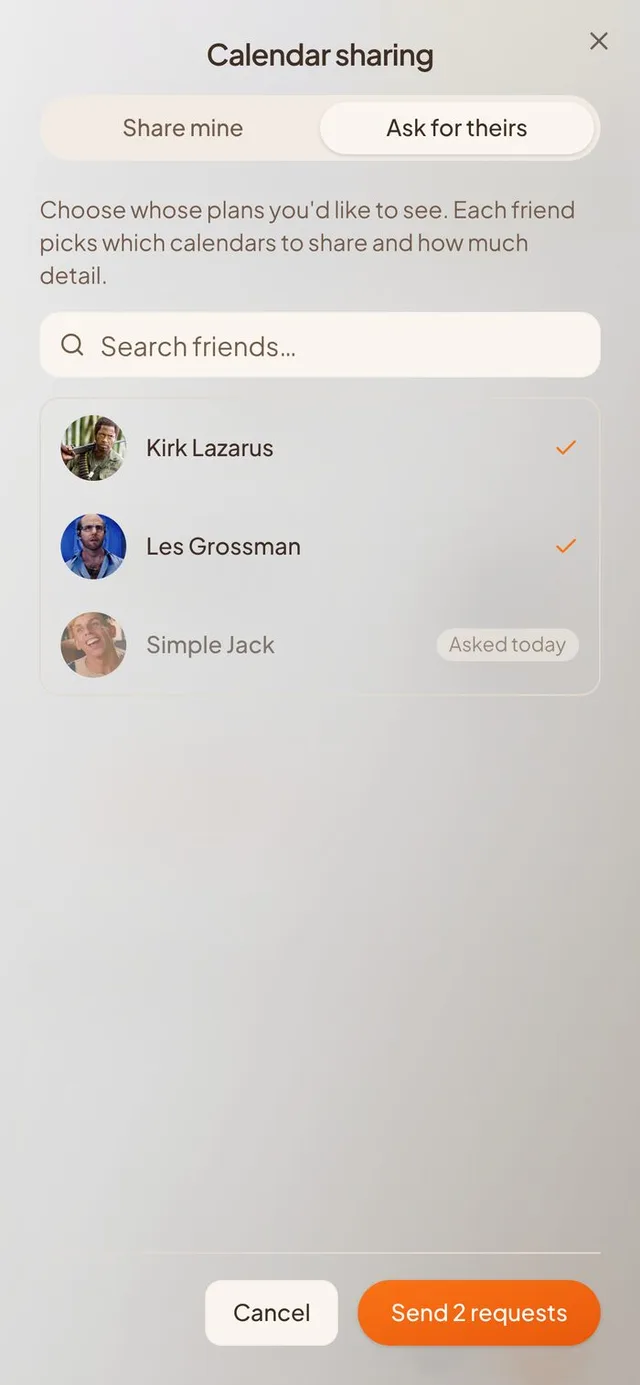
You can ask, and they can say yes in a tap.
Ask for theirs. The Calendar sharing screen has a new tab for asking a friend to share, or to share back when you have shared yours.
Friends see your ask in Notifications. It sits above friend requests, so they can answer it there.
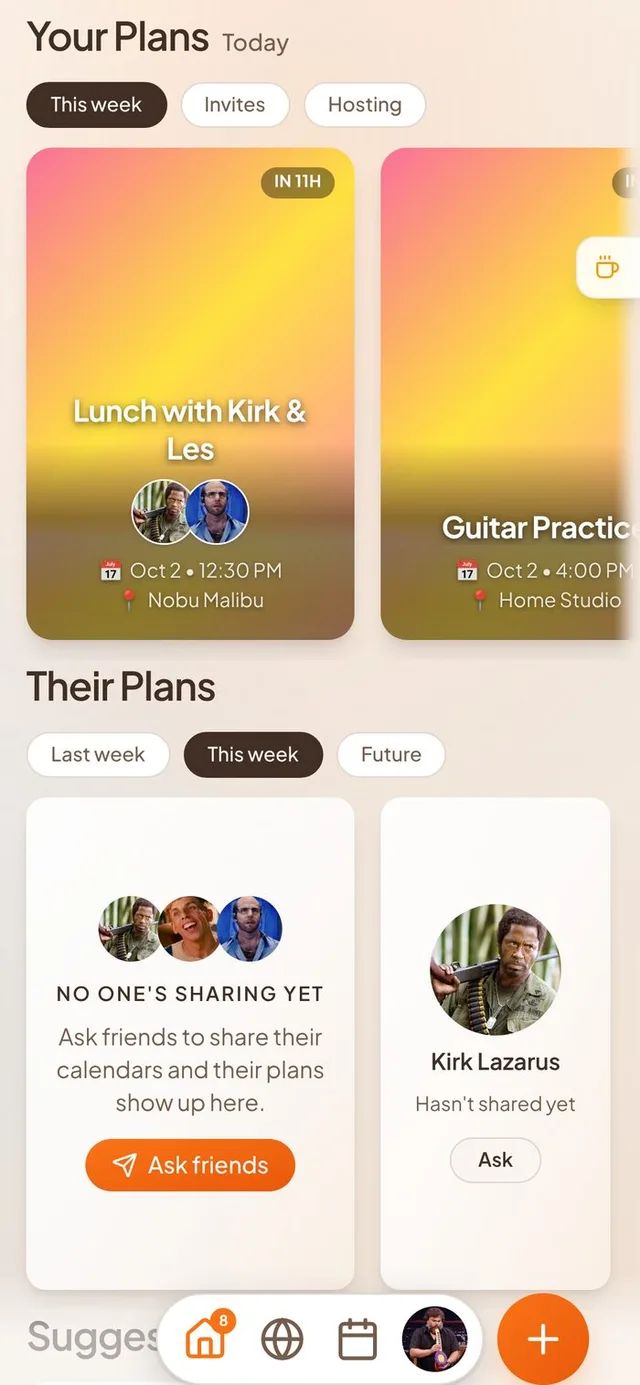
Home suggests it. When nobody shares a calendar with you yet, Their Plans offers to ask friends.
Preview before you share. Each privacy level shows what a friend would see on your own calendar. The screen fills the phone, and the dialog is wider on desktop.
Your other devices keep up
Change something once and see it everywhere.
Within about a second. Edit, move, delete or answer an event, and your iPad, a browser tab or a second phone shows it almost right away.
Less to download. Friends' new names and photos, shared calendars and new shares now load only what changed.
Swearing in your own notes is fine
Only slurs are blocked, and only in text other people can read.
Private events are not checked. Ordinary swear words no longer stop you saving your own notes.
Privacy policy updated. Text is checked against a word list on our side, and only photos go to an outside service.
A fresher look
New icons and tidier screens.
3D icons. The bottom menu, notifications bell, search buttons and your profile card's pencil and gear are now full colour.
Clearer shadows. The bottom bar and the invite pages' bottom bar float over the page.
Tidier forms. Event form fields sit at one height with matching corners, and nothing is cut off at the edges.
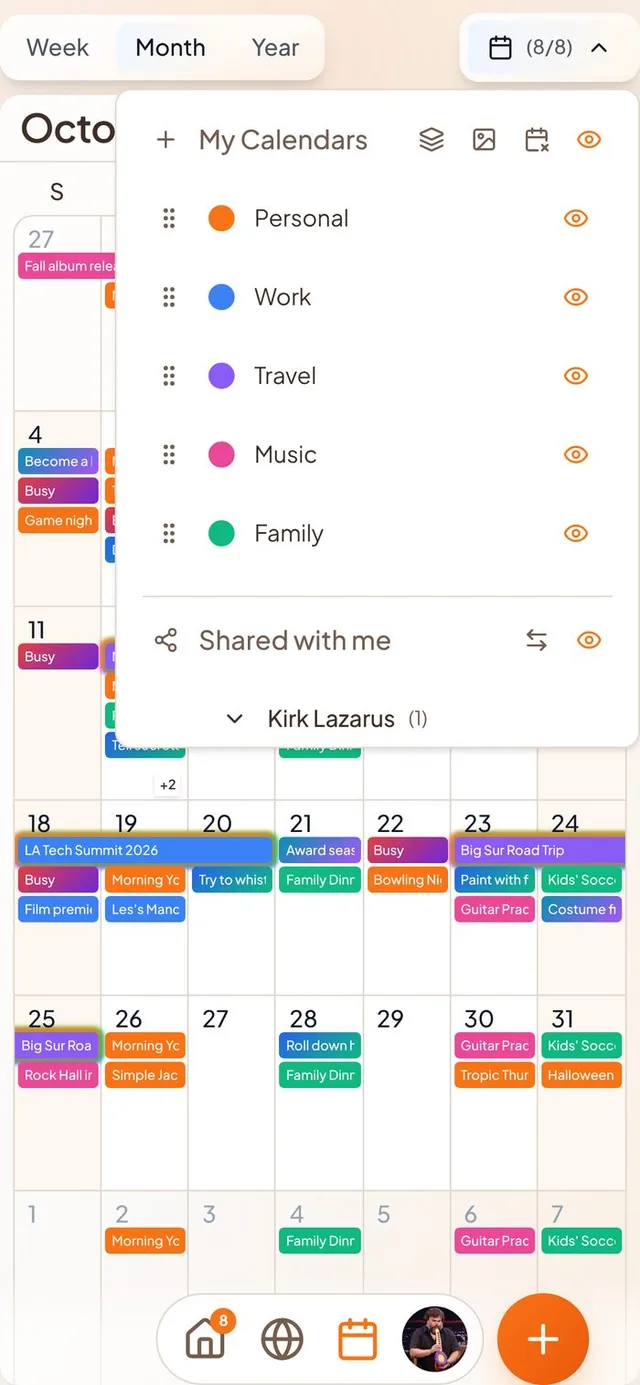
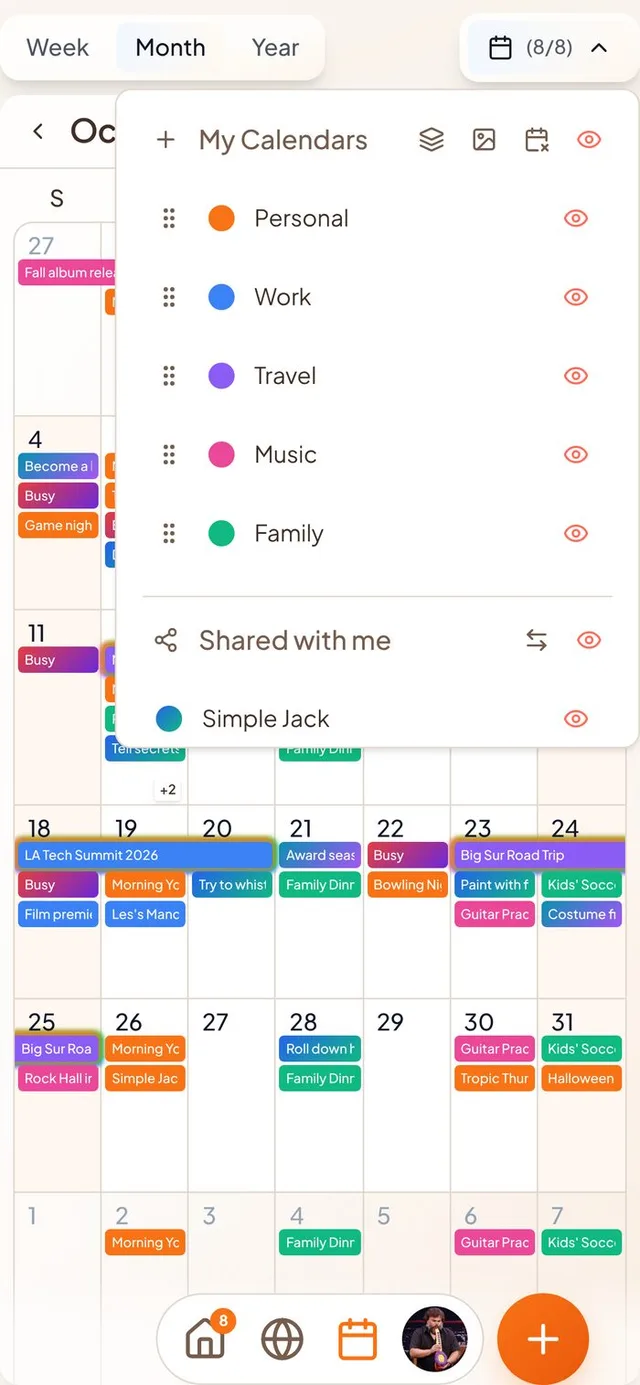
Calendars dropdown. Buttons and drag handles line up, and shared groups can be reordered.
Smaller improvements
A few more fixes.
Trip stops show the right time for guests in the same time zone as the host.
Google Calendar descriptions show as text with bullets and links, not as code.
Words on light event strips are dark enough to read.
A vibe you receive shows on your map pin right away, and friends' pins refresh when you reopen the app.
A friend request sent during setup shows a tick and "Requested".
Duplicating by dragging puts the copy on the calendar only, not in trip item lists.
A shared calendar you stop viewing leaves your calendar right away.
iCloud Reminders lists are no longer imported as calendars.
Calendars you have not opened in two weeks pause, and welcome you back when you return.
Sept 17 to Sept 23, 2026
New accounts start with a welcome trip and open event
A new Conmigo calendar now has a first trip and an open event to explore, plus drawers you can pull closed.
A first trip and a first open event
An empty calendar and an empty map are a lonely place to start. Now there is something to tap.
A welcome trip. Right after sign-up, your calendar has a trip from Juan, with an afternoon out, dinner and Sunday brunch near your home town. If you didn't give a town, it's a week in Italy instead. It starts on the first Saturday still ahead.
An open event on your map. Every new account gets an open event, so you can see what one is and how to make your own. About half a minute after you finish setting up, you get a notification about it.
Juan is your first friend. He shows up in your people, on the map and as a guest on the trip. One switch in Settings, under Help & Docs, hides him everywhere. You can turn him back on at any time.
Pages that stop being empty. The Who page keeps its “add your people” card until you have added someone. The Where page shows one card that asks you to invite friends or share your location.
Open events and trips on the map
Friends can now see what you open to them, and look inside it.
Your open events reach your friends' maps. Some open events never showed up on friends' maps. They do now.
Trips show as one pin. An open trip and its stops show as a single pin with the itinerary glow, and a friend who opens your trip can see its stops.
Write your own message. When you turn on Notify connections, the title field is the message your connections get, so you see it before you send it. Save stays grey until the event has a place.
Pull-down drawers and a calmer keyboard
Pull down to close, and the page stays put while you type.
Pull to close. The Today view and a place's details are now real drawers with a grabber bar. Swipe down anywhere on them to close, not only from the handle.
A calmer keyboard. The page no longer jumps or shows a wrong-coloured band. The field you type in lifts above the keyboard, and the keyboard matches your app's light or dark theme.
Photos in events
Sharing a photo feels quicker.
Your photo shows right away. When you pick a photo for the feed, you see it at once. Return waits until the upload is done, so a caption never goes out without its photo.
Smaller photos, faster feeds. Photos are shrunk on your phone before they send, and feeds load lighter copies.
Memory photos. They appear on your calendar sooner and are visible to the event's guests. A calendar share shows them only at full visibility.
Smaller improvements
A few more fixes.
Settings has a new Calendars & Events page, and Appearance holds your theme and background.
A new account no longer gets a desert background, and the background loses its grain.
You can now enter a birthday that was empty before.
An all-day event says “All day”.
A friend's new profile photo reaches events you already have.
Tapping Sync Now too soon says “Synced just now”.
Sept 10 to Sept 16, 2026
Edit or delete repeating events on any calendar
Change one date or the whole series on Google, Outlook and iCloud, with times that stay put and a time zone button.
Repeating events, done right
Weekly gym, monthly rent: change one date or all of them, wherever the event lives.
This event or All events. Deleting or editing a repeating event on Google, Outlook or iCloud now asks which one you mean. Dragging an event to the trash asks the same question.
Replies cover the dates you pick. When someone invites you to a repeating event, Conmigo asks whether your answer is for this date or every date. This now works for iCloud invites too.
Your changes in Google and Outlook show up. Rename a series or move its time on Google Calendar or Outlook and Conmigo follows. Replies you give to a single date on your iPhone show up too.
Series stay whole. Weekly events made in Conmigo now reach Google as one series instead of one date. Editing all events keeps the first date and any dates you moved or cancelled.
Times that stay where you put them
Saving an event no longer moves it.
A time zone button. The event editor shows which time zone you are typing in, next to the All day switch, and lets you change it. Dinner at 9pm in Barcelona can now be entered as 9pm.
Renaming does not shift the time. Saving from a phone in another time zone used to move the event, even if you only changed the title. It now keeps the event's own zone.
All-day events stay all-day. Birthdays and days off no longer turn into timed events after a save. This covers Google, Outlook, iCloud and calendar files, and the iPhone widget and the Where map now show them as All day.
iCloud gets the right event. Events you create or move onto an iCloud calendar land at the right time, with the right days and repeat.
Clearer steps and permission help
Clearer steps, and a way back when you say no to a permission.
Notifications are asked once, at the right time. The permission box now appears on the notifications step, after we explain why. The dentist reminder is the first example.
A way back after Don't Allow. Wherever a blocked notification, location or camera setting stops something, Conmigo links you to its page in iPhone Settings.
Friends already on Conmigo come first. From contacts now puts people who already use Conmigo at the top with a Connect button. You also get a notification when someone you saved joins, which you can turn off in Notification settings.
Easier to get around
Small touches that add up on a phone.
Swipe from the left edge to go back. It works on events, Settings pages, onboarding steps and People groups, and does what the back arrow does.
Titles always fit. Calendar, Settings and your name stay on one line in full, even on the smallest iPhones.
Overlapping events in Week view. Events that overlap now stack like Google Calendar, so long events stay readable.
Smaller improvements
A few more fixes.
Rename a sharer's group in Shared with me by double tapping it, and its title now matches My Calendars.
Moving profiles no longer show as a black circle on newer iPhones.
Swipe the in-app banner left, right or up to dismiss it.
Invite links now open properly inside the iOS app.
Outlook saves no longer replace an event's description.
Sept 3 to Sept 9, 2026
Pick an event's date and time in a tap
Dates and times are now separate buttons with an All day switch, and shared calendars stay grouped by friend.
A clearer way to set when
Setting the date and time of an event used to be one cramped button.
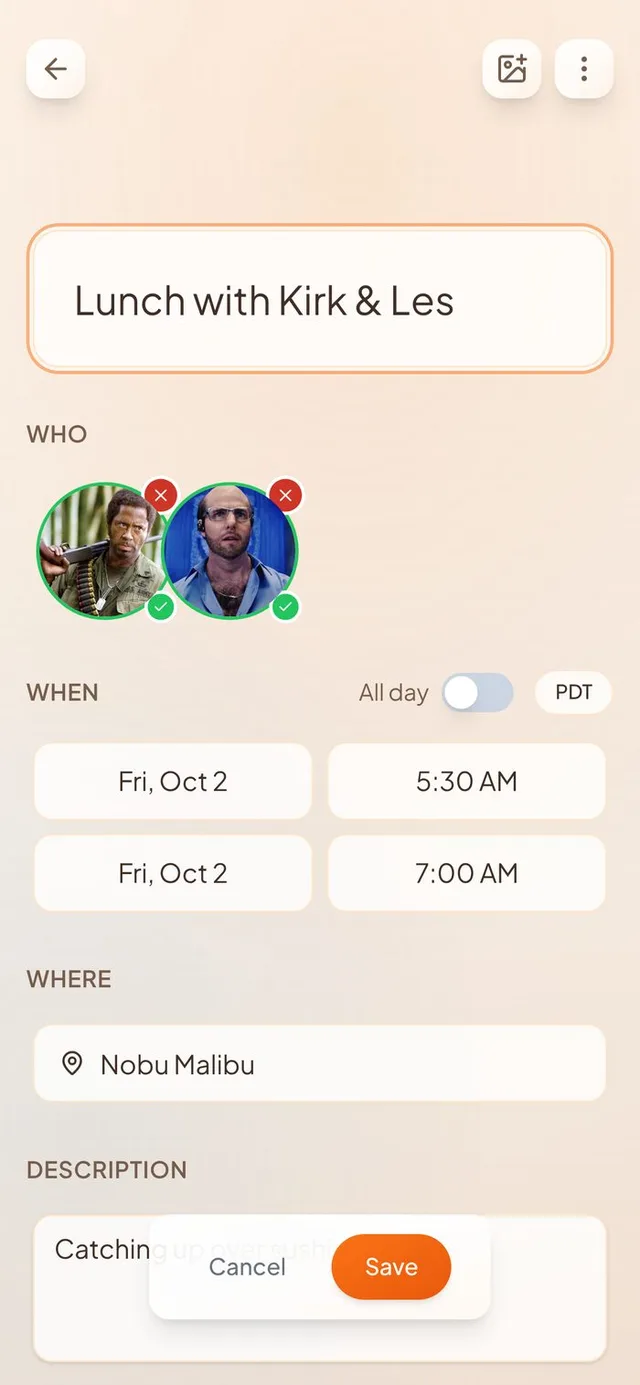
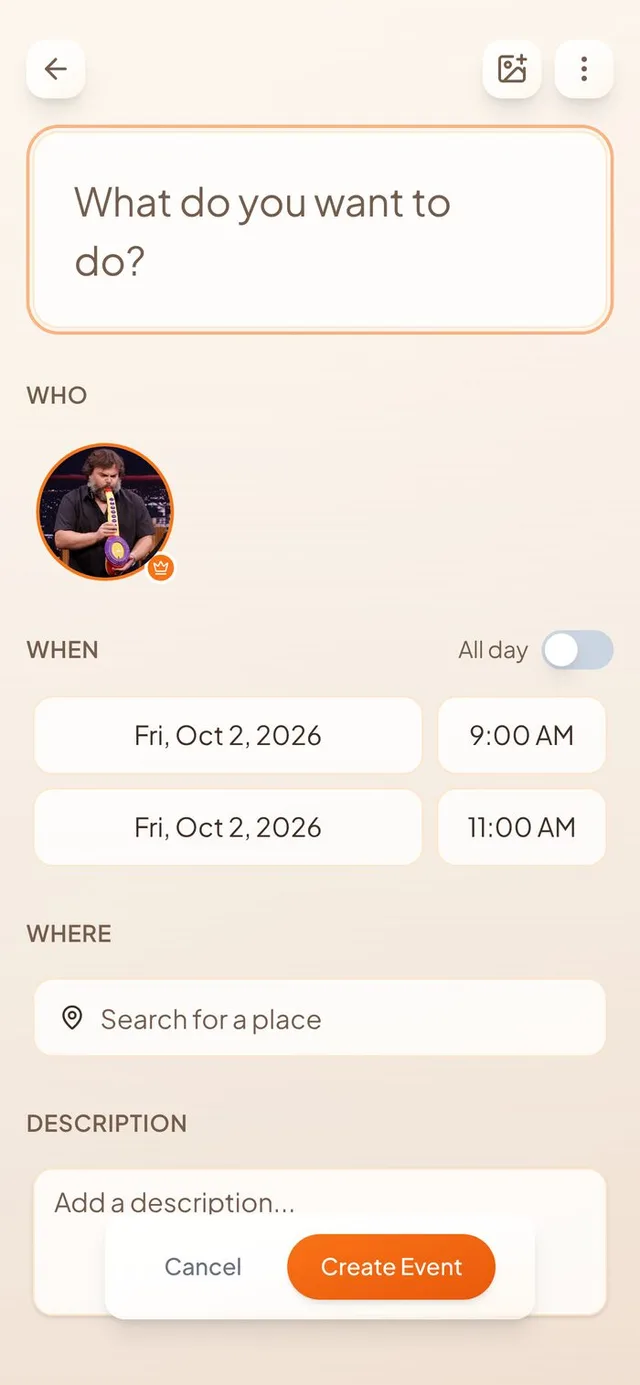
Date and time, side by side. Each end of your event has a date button, like “Fri, Oct 2, 2026”, next to a time button, like “9:00 AM”. Tap one and pick what you want.
All day switch. Turn it on and the time buttons go away. Your event runs the whole day.
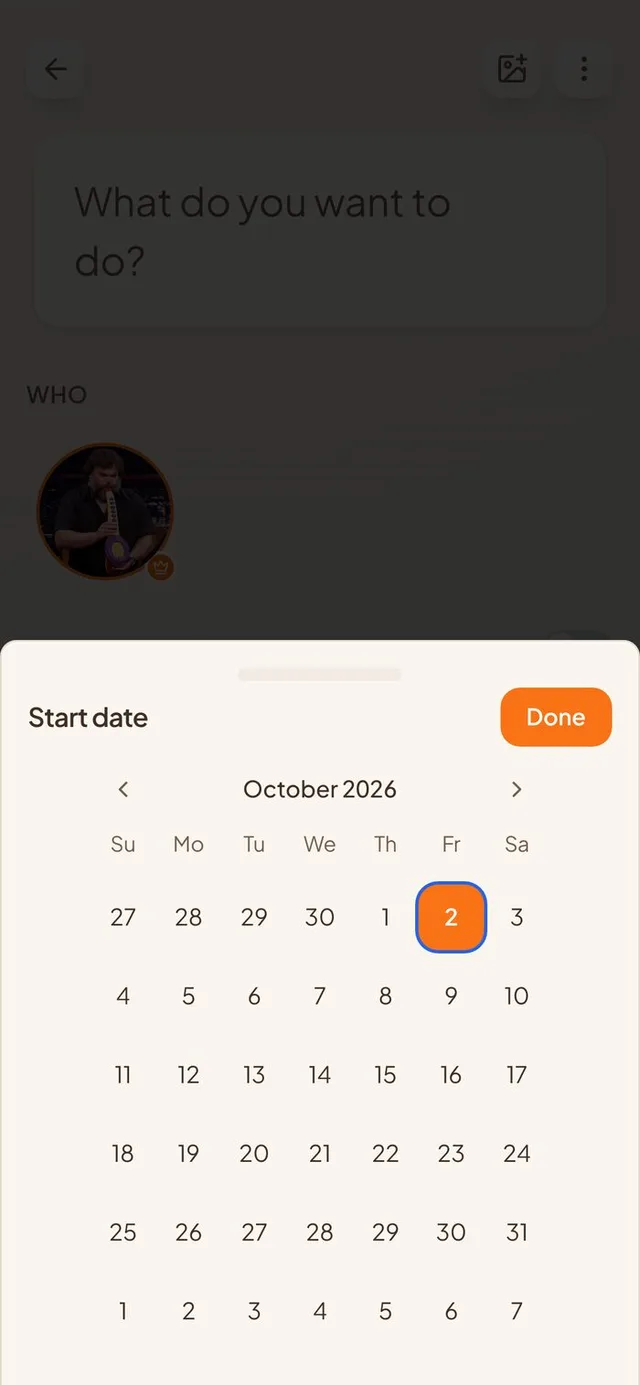
One step after another. On a new event, the pickers open one after the other: start date, start time, end date, end time. On a phone they slide up from the bottom.
Today stands out. Today has a blue ring, so it never disappears when you pick it. Month changes slide smoothly, and a five or six week month is no longer cut off.
Shared calendars, tidied up
Calendars friends share with you now stay together.
Grouped by friend. When someone shares several calendars with you, they sit together under their name.
Drag to reorder. You can now drag shared calendars into the order you like.
No stray empty groups. A group you empty is removed. Dragging a calendar past a collapsed group no longer drops it inside.
Open events and invites
Events you open to friends now behave the way you expect.
Notifications on every save. Turn on Open Invite and Notify connections, then save. Friends are told whether the event is new or edited. Re-saving does not tell them twice.
Closed and silent to start. Every event starts closed and tells nobody, including events that came from Google, Apple or Outlook.
Invite links work. Opening an invite link now takes you straight on without a flash of an error page, and you become friends with the person who sent it. Sharing no longer sends the link twice.
Smoother Apple calendar setup
Connecting a calendar takes fewer wrong turns.
Apple events show up. Apple calendars no longer say “synced” while leaving events out. Long-running repeating events appear too.
Everything switched on. A new account arrives with all its calendars selected. Apple connects more reliably, and a wrong password still fails right away.
A tidier first-run flow. Every setup screen has the same header and footer. Continue waits until you have done something on screens that offer “Not now”.
Smaller improvements
A few more fixes.
Photos in a place's drawer load faster and keep their real shape.
Sending a friend request only spins the person you tapped.
Holiday calendars no longer put pins on your map.
Multi-day events show as multi-day everywhere, including the year poster.
The year PDF puts the “+N” badge at the bottom of the day.
Aug 27 to Sept 2, 2026
Set up Conmigo around Who, When and Where
A friendlier first-run setup, a tidier Settings and a Year poster you can print.
A new way to get started
Setup now follows three simple ideas: who you know, when you're free and where you live.
Who, When, Where. The steps now run in that order, starting with you. You pick your name, your @Tag and your picture first, then add friends, connect your calendar and set your home town.
A photo dome on every step. The colourful header is now the same photo dome you see on the sign-in screen, so setup looks like the rest of Conmigo.
“We feel like we really know you.” Once your calendar is connected, a new last step shows what we noticed, such as your recurring routines, trips and favourite places. Nothing from your calendar is saved to make it.
Pick your own @Tag. Your @Tag is now yours to change, with a check that tells you right away if it's taken. You'll find it under Profile in Settings.
One checklist for finishing setup
Reminders to finish setup no longer pop up from four different places.
Everything in one card on Home. It lists your name and picture, calendar, friends, notifications, home town and inviting someone. Finished items stay on the list with a line through them, and you can dismiss the card.
Tap a row to do it. Each row takes you straight to the right screen. The notifications row explains itself before your phone asks for permission.
Redo onboarding. In Help & Docs, “Redo setup guide” is now “Redo onboarding.” It starts from the first screen, and redoing it no longer sends your friend another “joined Conmigo” message.
Settings, tidied up
Everything now has a clear place.
Four groups. Account, Calendars, Preferences and Support. On phones they show as cards, and on computers as a sidebar that is always in view.
Easier to find things. Profile is now in the menu. Your calendar pages are one step away instead of three, and both AI switches share one page.
A Save button on your profile. Changes now wait until you tap Save, which lights up only when something changed. If you leave with unsaved edits, Conmigo asks first.
Print your year as a poster
The poster layout of the Year tab can now go on paper.
A fourth choice when you export. Pick the poster layout in the PDF export screen. It prints upright, with 31 days down the page and 12 months across.
Events per day. A new slider limits how many events show in each day. Making the text smaller fits more on the page.
Clearer lines in the Year tab. Month lines are now darker than day lines in both Year layouts, and they follow high-contrast mode.
Smaller improvements
A few more fixes.
Choosing a picture during setup opens the cropping tool properly again.
The top of your profile picture is no longer cut off in Settings.
Diagnostics is no longer a blank page and now shows your app version.
Delete buttons on calendar pages show without hovering, so they work on touch screens.
New friends no longer get a “joined Conmigo” message before they have picked a name.
Aug 20 to Aug 26, 2026
Export your week, month or year as a printable PDF
Preview it at real paper size, then save it. Plus a wall-calendar layout for your Year view.
Export your calendar as a PDF
Print it, pin it up or send it to someone, straight from Settings.
Pick what to print. Choose a week, a month or a whole year, then the period and the paper size. Tap Export PDF in Settings to start.
See it before you save it. A live preview shows the page at real paper size. You can zoom in and drag it around, and it updates as you change anything.
The PDF matches the preview. What you see on the page is exactly what you get. If a busy year is cut off, a note tells you, and a smaller text size or bigger paper fixes it.
Always light. The PDF is light even if you use dark mode.
Choose what goes on the page
Include only the calendars and details you want.
Choose your calendars. Tick the calendars to include, or use All and None to switch them all at once. This does not change which calendars you see in the app.
Make it yours. Change the text size, and show or hide day photos and the calendar legend.
Itineraries. Include or leave out events inside itineraries.
A wall-calendar view of your year
Days 1 to 31 down the side, months across the top.
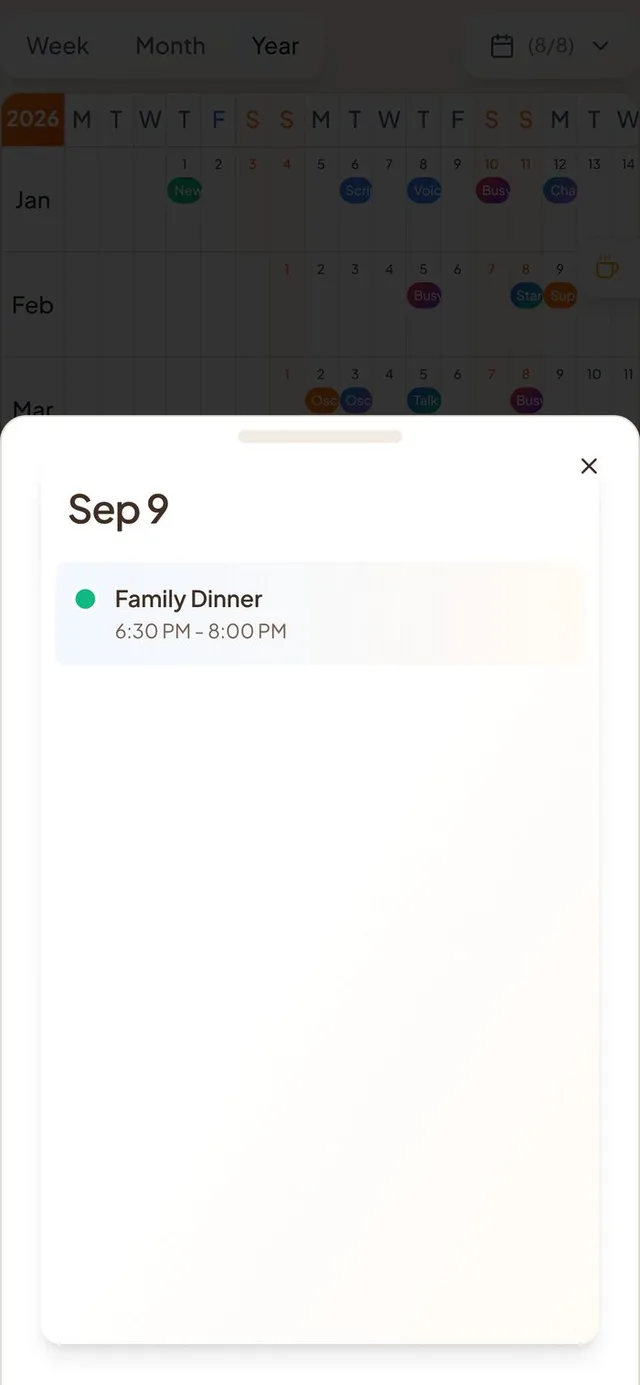
Turn it on in Preferences. Switch on “Year view: day rows” and the Year tab shows your whole year on one grid. It is off by default, so nothing changes until you choose it.
Tap the corner to jump to today. The year badge in the top corner takes you to the current year and centers today. It works in both year views.
Room to scroll. The last rows now scroll clear of the bottom bar on phones, and the badge has its orange color back.
Invites that don't look broken
Guests were sometimes told a good invite was gone.
A bad connection is not a dead link. If an invite or itinerary page fails to load, guests now see a message with a way to try again, instead of being told the invite was removed.
A friendlier page for cut-off links. Long links that get split in a text message now land on a Conmigo page that says the link may be incomplete and suggests asking for a fresh one.
Friend requests. Tapping a notification about a friend request or an accepted request opens your calendar instead of an error page.
Event invites. Tapping an event invite notification opens the event.
Smaller improvements
A few more fixes.
Cover photos for new events are now a setting in Preferences, and they are off by default.
Buttons, checkboxes and switches use Conmigo orange again instead of a salmon pink.
Meeting time suggestions are more accurate when daylight saving changes or when you are in another time zone.
Aug 13 to Aug 19, 2026
Venue pages with photos and friends who have been there
See a short description, photos and which friends want to go. Plus replies that work for Apple events and repeating plans.
A new page for every place
Tap More on an event's venue and everything you need is on one page.
One simple page. Photos, name, rating, address, hours and parking sit together instead of in three tabs. Photos are never cropped. Tap any photo to see it large, then swipe through the rest.
A short description. Each place gets a one-sentence summary written from its reviews.
Website button. Places with their own website now show a Website button. It opens the real site, not a map.
No made-up numbers. We removed the bar chart of star ratings. It was not real data, and the full reviews are one tap away on Google.
See which friends love a place
Save places you want to try and mark the ones you loved.
Bookmark and heart. Tap the bookmark for places you want to go and the heart for places you love. Both sit next to the place name.
Friends at a glance. Three boxes show who has been there, who loved it and who wants to go. An empty box says “Be the 1st.”
Have been here. Friends who went to an event at a place show up under “Have been here” after it ends. Only people who accepted the invite count.
You choose what friends see. Turn off “Places you have been” in Settings and your visits stay private.
Replies that reach your calendar
Accept, maybe and decline now work in more places.
Apple Calendar events. You can reply to invites from Apple Calendar, just like Google and Outlook. The buttons no longer appear when a reply can't be sent.
Repeating events. Replying to a repeating event now asks whether your answer is for this one or for all of them.
The right Google calendar. An invite you accept lands on the Google account of the calendar you picked, even if you have more than one.
Imported calendars. Events on an older Imported calendar can be answered instead of showing an error.
A more accurate map
The Where map shows what is actually happening.
One pin per series. A repeating Google event no longer drops a pin for every date.
Declined events leave the map. Plans you said no to no longer get a pin.
Pins expire on time. If you keep the map open, an event's pin disappears when the event ends. Events happening right now show as full cards.
Real covers. Stacked pins show real cover photos.
Smaller improvements
A few more fixes.
The venue photo now shows on an event in your itinerary and on the event page, not just on Home.
The “Still Planning” filter on Home is gone. It always came up empty.
Arrival check-ins now work for older events with a saved place.
A Settings change that fails to save now tells you and switches back, instead of silently flipping the toggle.
Aug 6 to Aug 12, 2026
Create and share calendars from your calendar list
New buttons make a calendar or share one with friends. Every event also gets a nicer photo.
Calendars, made and shared in one place
No more digging through Settings to start a calendar or share one.
New calendar. Tap the plus beside My Calendars, give it a name and pick a colour. Conmigo suggests a colour you aren't using yet.
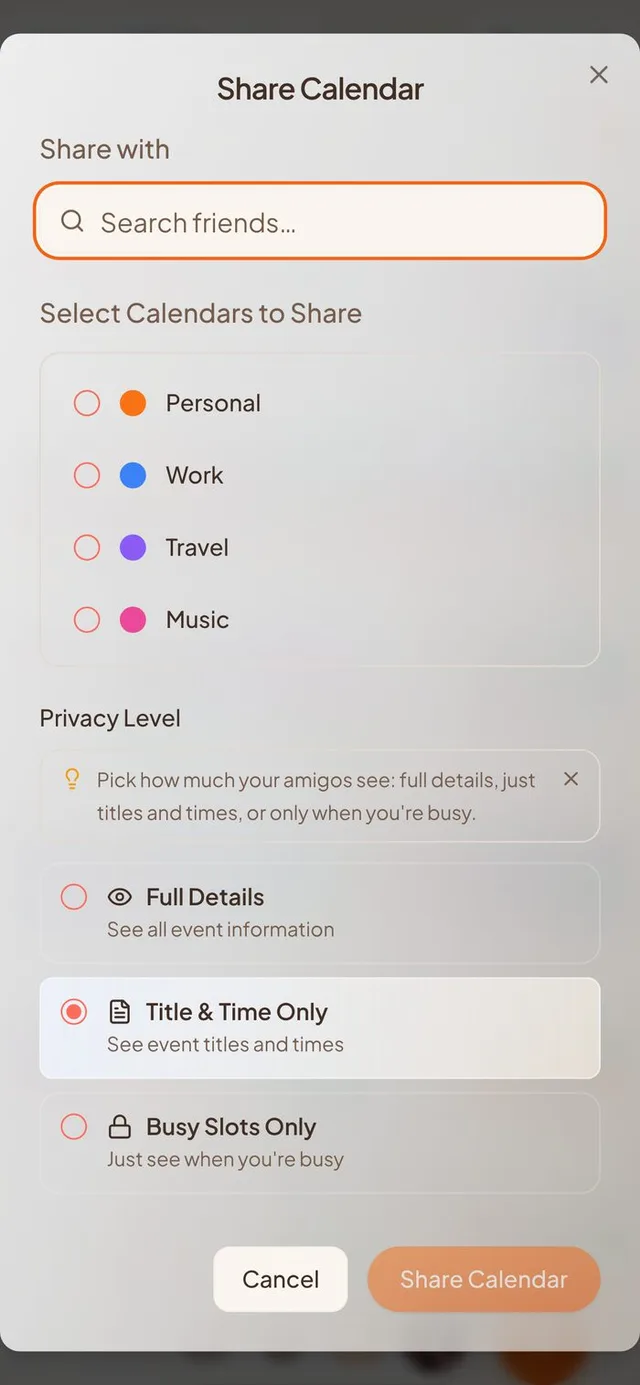
Share from your calendar list. Search your friends, choose one or several, and tick the calendars to share. Your Birthdays calendar is left out.
Choose how much they see. Full Details, Title & Time Only, or Busy Slots Only. It starts on Title & Time Only.
Text blasts, easier to find
Hosts can message everyone on an event from the comment box.
Megaphone at the top. The host's blast button now sits at the top right of the comment box, and the window is titled “Compose Text Blast.” The counter no longer covers the close button.
Photos in notifications. A photo sent with a blast can now show up in the notification itself.
Every event gets a photo
Fewer blank covers, with no work from you.
Photos for synced events. Events from Google, Apple and Outlook that have a place now get a photo of that place over the next few syncs.
A cover for new events. New events start with a photo picked from a set of 25 that changes every month. Change it any time.
Moved the event? If you change an event's location, the old place's photo goes away instead of staying.
Roomier cover picker. On phones it fills the screen, and Pictures now comes first, then GIFs, Stickers and Gradients.
Smoother sign-up on iPhone
Setting up your account no longer trips you up.
Your name sticks. When you sign up with a phone number, the name step stays on screen until you fill it in. Before, it could disappear and leave you with a placeholder name.
Setup fits your screen. Each setup step now fills the whole phone screen, clears the notch, and keeps its buttons in reach.
A faster finish. The last step closes right away, and its photo wall is far lighter, so it loads much quicker.
Clearer calendar connection problems
When something goes wrong, the app now says what.
Apple Calendar. Settings tells a wrong password apart from Apple's servers being unreachable, so you know whether to retype it or wait.
Replies that didn't send. If your RSVP can't reach the organizer through Google or Outlook, a message says so and offers a Reconnect shortcut.
Smaller improvements
A few more fixes.
Switches are orange when on, like every other control.
New events and map pins start in orange instead of blue.
Buttons no longer stay highlighted after you tap them on a phone.
Invite pages no longer show a “Download on the App Store” badge inside the app.
The “Can't Make It” button looks the same everywhere.
July 30 to Aug 5, 2026
Press and drag to move or duplicate events
Hold an event, drop it on a new day or time, or on Delete or Duplicate. Plus a free first calendar.
Move events by dragging
Rescheduling no longer means opening the event and editing the time.
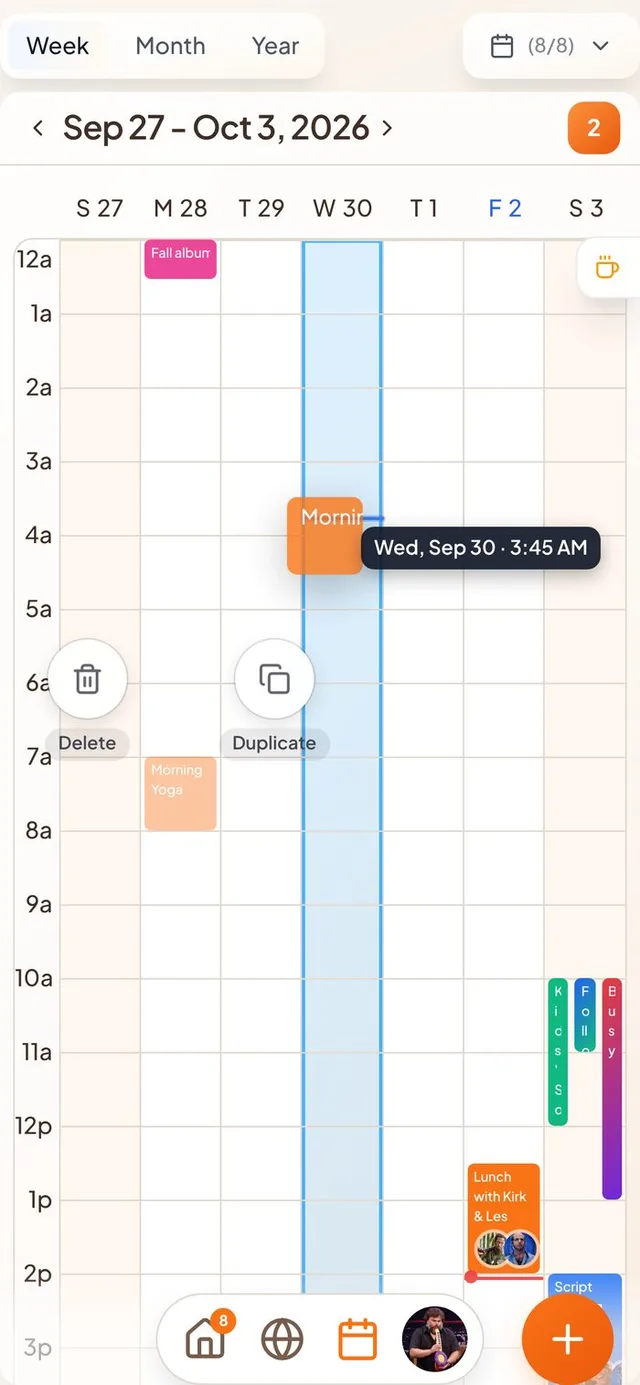
Press, hold and drag. Hold an event in your calendar until it lifts, then drag it to a new day or time. A label shows exactly where it will land.
Delete and Duplicate circles. While you drag, a Delete circle and a Duplicate circle appear above the event. Drop on one to use it. Hold over Duplicate for a moment, then place the copy where you want it.
Undo. After a move, “Event moved” appears with an Undo button. Moving the same event several times in a row never puts it back in the wrong place.
Repeating events. Events that repeat from your Apple calendar can be dragged to a new day or time too.
Itineraries stay together. A trip can't be moved or shrunk so that the events inside it fall outside its dates. Moves that would break it are refused instead of saving quietly.
One free calendar, more with a purchase
Your first connected calendar is free, and each extra one needs a slot you buy.
At sign-up. The connect buttons for Google, Microsoft and Apple in the welcome screens follow the same rule. When you need another slot, checkout opens right there and your connection continues after you pay.
Slots unlock on their own. If you closed the app before a payment finished, opening Settings brings in the slot you paid for.
Faster, steadier edits
Small moments that used to feel slow or risky.
Duplicate is instant. The copy appears right away. Its form opens ready to edit, and Save says “Saving…” until the copy is stored, so you never end up with two.
Accept and decline feel immediate. Replying to an invite updates the screen at once. If it can't be sent, the invite goes back to how it was.
Moves don't overwrite edits. A move you just made is saved before an edit from the event form, so the new times win.
Invite links that find the app
A friend's invite now works even if they don't have Conmigo yet.
Smart links. An invite link opens Conmigo if you have it, or the App Store if you don't.
Back to the right place. After a new install, the app takes you to the exact invite, itinerary or friend link you tapped.
Invite from the map. The Invite button on the Where map waits for your personal link, and tells you if it can't get one.
Smaller improvements
A few more fixes.
Repeating events show how they end, such as “10 times” or an end date.
Weekday buttons for repeats are easier to tell apart (Tu and Th, Su and Sa).
Deleting a repeating event asks whether you mean one event or all of them.
You can attach pictures to an event.
Event times follow the right time zone in the calendar.
Dragging an event no longer causes a blank screen after you drop it.
Itinerary items can be shared with friends.
July 23 to July 29, 2026
Repeat events on the days you choose
Pick Mon, Wed and Fri with a tap, import a calendar file, and undo a deleted repeating event.
Repeating events, your way
Weekly events can now follow your real week, and deleting one is no longer final.
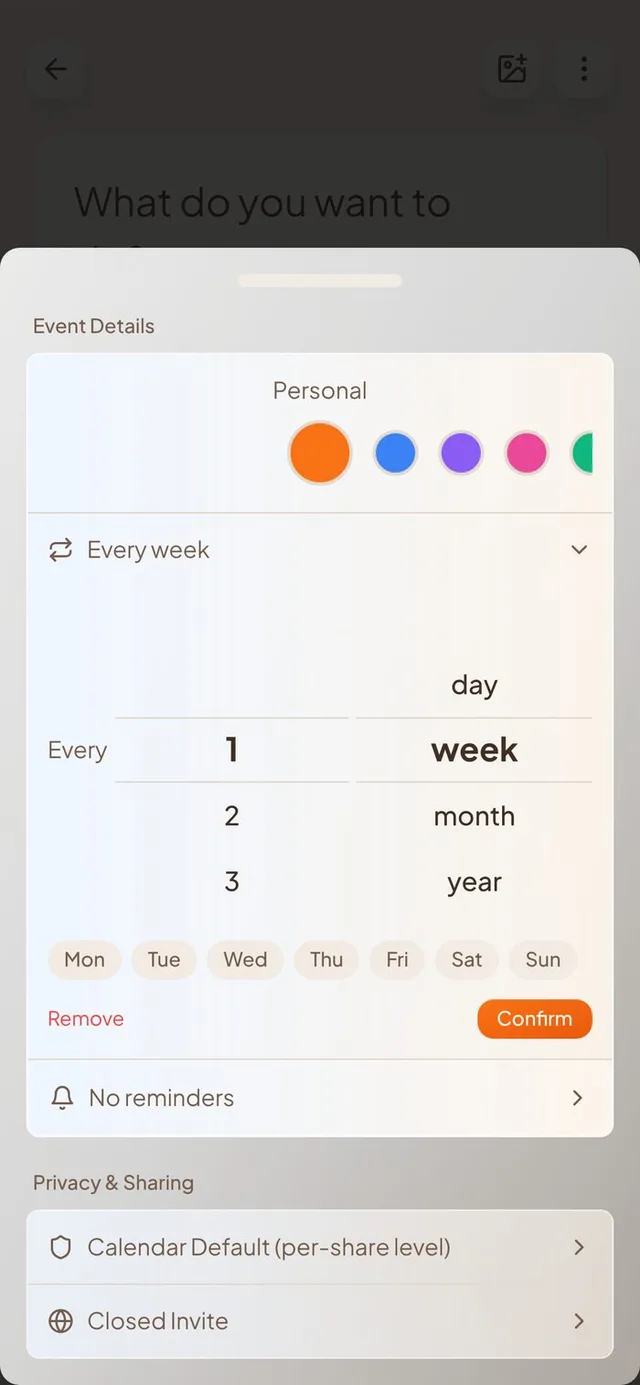
Choose the days. When an event repeats every week, a row of day buttons from Mon to Sun appears. Tap the days you want, and the repeat line reads “Every week · Mon, Wed, Fri.”
Undo a delete. Deleting one day of a repeating event now gives you a few seconds to tap Undo before it is gone. Deleting the whole series works the same way.
Deleted days stay deleted. If you remove one day of a repeating event that comes from Google, Outlook or Apple Calendar, it stays removed after the next sync instead of coming back.
Edits stay too. A single day you changed in Outlook or Apple Calendar keeps your changes when your calendars sync again.
Bring in a calendar file
Got an .ics file from another app? Import it in a few taps.
Preview first. Choose a file and you see the events inside it. Then pick which of your calendars they go into.
No double events. Import the same file twice and Conmigo skips what is already there. It tells you “imported” and “already existed” counts when it finishes.
Quick, with progress. Big files import faster and show a live count. If a few events fail, you see how many, and the rest still come in.
Works on your phone and computer. On iPhone it opens your Files. On a computer you can also drag the file onto your calendar.
More calendars, if you need them
Your first two connected accounts are free.
Extra account slots. Google, Outlook and Apple Calendar count together. When you want more than two, you can buy extra slots for $10 each on the web.
Buy several at once. Pick 1 to 5 slots and the button shows the total price for the number you chose.
The right count. After you pay, the message tells you how many slots you really got, even if you changed the number at checkout.
Smoother sign-up
Conmigo greets you by your name from the start.
Name asked up front. If you sign up with your phone, Conmigo asks for your name before taking you in. Email sign-up has first and last name boxes.
Your first name. The greeting on Home and your profile no longer show the start of your email address.
Easier login buttons. On phones the button sits inside the card, and on computers it sits at the bottom. The links on the email screen are now orange so they look tappable.
Smaller improvements
A few more fixes.
Shared itinerary links no longer show who was invited.
Events a friend hides from you stay hidden on shared calendars.
Only photos and videos uploaded through Conmigo can be used as profile and comment pictures.
July 16 to July 22, 2026
Block and report people you don't want to see
Choose who you see on Conmigo, report problems in private, and sign in on a cleaner first screen.
Block and report
You decide who you see on Conmigo, and you can tell us when something is wrong.
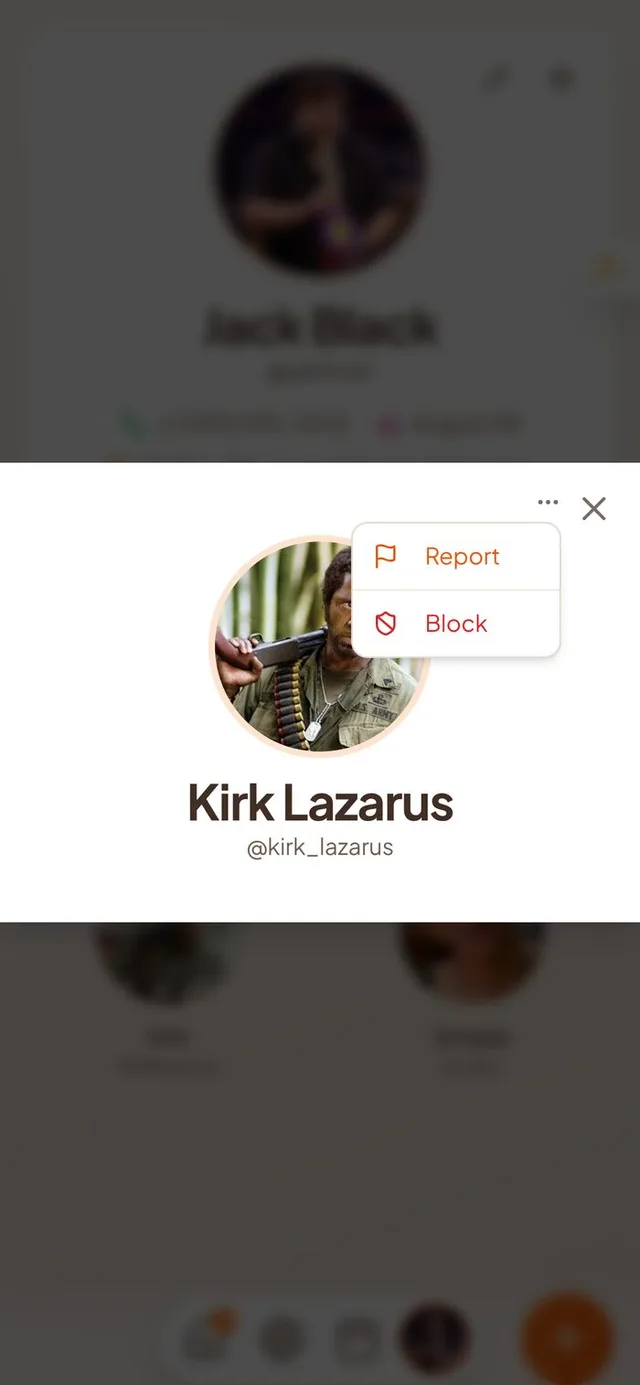
A menu on every profile. Open a friend's profile and tap the three dots to Report or Block them. If you already blocked someone, the same menu says Unblock.
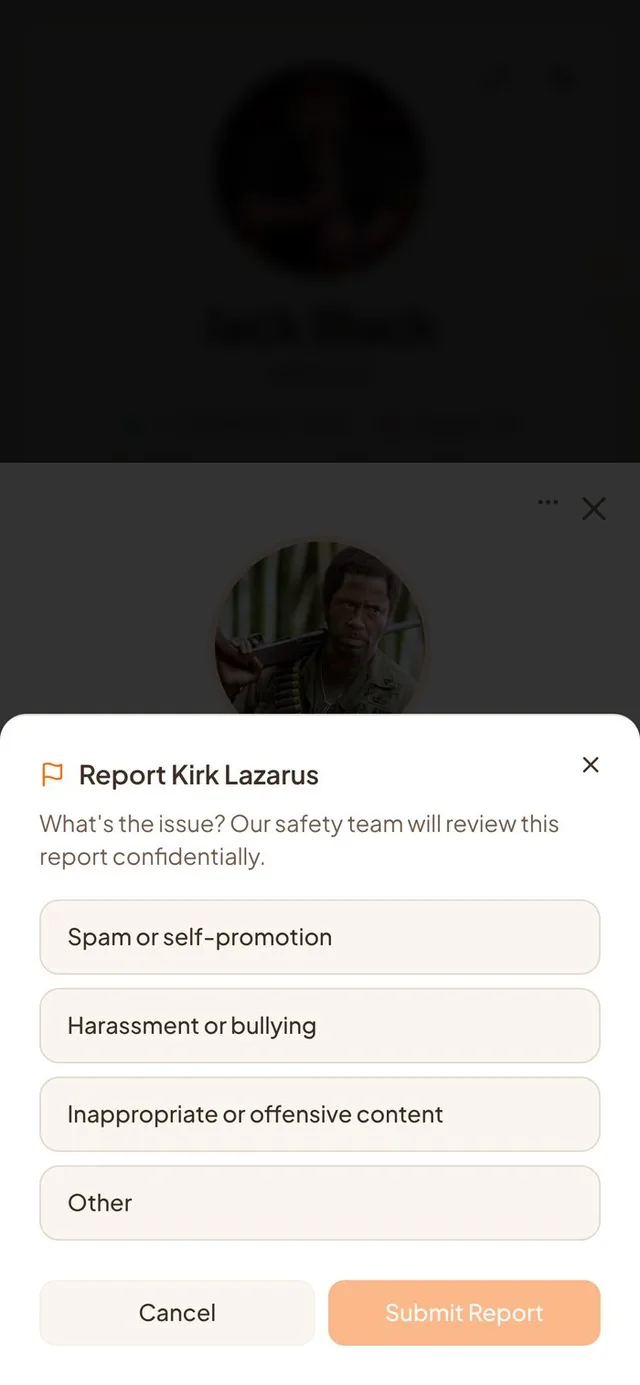
Report with a reason. Pick spam, harassment, offensive content or other. Our safety team reviews every report in private, and the person is not told.
Report a comment. Comments from other people now have a menu with a Report option.
Blocked people disappear. You stop seeing each other's comments, events and names in attendee lists, in both directions. Blocking someone on the Who page now blocks them instead of just removing them as a friend.
Change your mind in Settings. Account Info has a Blocked people section where you can unblock anyone. If you both blocked each other, unblocking one of you does not bring the friendship back.
Offensive words stopped before saving
You see a short message in the form instead of finding out later.
Instant message. If an event, a comment or your display name contains offensive language, you see a short message right in the form. Nothing waits on a slow connection.
Clearer rules. The Terms of Service now spell out what is not allowed, how reports work and what can happen to an account. The minimum age is 13.
A calmer sign-in screen
The first screen now tells you what you are agreeing to.
Terms up front. The Terms and Privacy line sits under the Continue button on the very first screen, and the phone number screen is cleaner.
Keyboard stays out of the way. On iPhone, the sign-in card moves up so you can still read it while you type.
Better on computers. The login card is centered, and our website has a Sign In button. Closing the Terms or Privacy page takes you back where you were.
Fewer duplicates, steadier events
Two annoyances in your calendar are gone.
No double events. If you connect more than one Google or Outlook calendar, the same event no longer shows up twice.
Steady event header. On an event page, the top buttons now stay put as you scroll instead of drifting and then snapping.
Smaller improvements
A few more fixes.
Blocking or reporting someone no longer ends in an error message.
Log Out now sits right above Delete Account in Settings.
Holiday pictures load faster when you switch between month and year views.
Your calendar refreshes a bit quicker.
Our tagline is now “The Best Shared Yearly Calendar”.
July 9 to July 15, 2026
Find friends by city on the Where map
Friends gather into tidy clusters and city pills filter the map. Plus a tidier event settings sheet.
A clearer Where map
Seeing where your friends are should feel calm, even when they are all in one place.
Friends in tidy clusters. When several friends are close together, their faces pack into one neat blob instead of a pile. Tap a blob to zoom in and see each person.
Smooth zooming. Clusters split apart and join back up while you zoom, and markers fade in and out instead of jumping.
Friends at the same spot. Tapping a group of friends standing in exactly the same place now splits them up. Before, it could keep zooming without ever separating them.
Tap a face to open a profile. Once you are zoomed in close, tapping someone's picture opens their profile straight away. The small name card is gone.
Find people by city
City filters now work on the map and on the Who page.
City pills on the map. On phones, the Where map has a row of city and group pills instead of the old Filters panel. The Map label is hidden to save space.
Every city shows up. Cities from friends' home addresses and from your own contacts now appear, and contacts are no longer hidden by a city filter by mistake.
City and group work together. Pick a group and you only see cities where its people live. Pick a city and you only see the groups that live there.
Two tidy rows on Who. The city pills on the Who page sit in two rows that scroll sideways, instead of wrapping unpredictably.
Event settings, grouped
Everything about an event is easier to find.
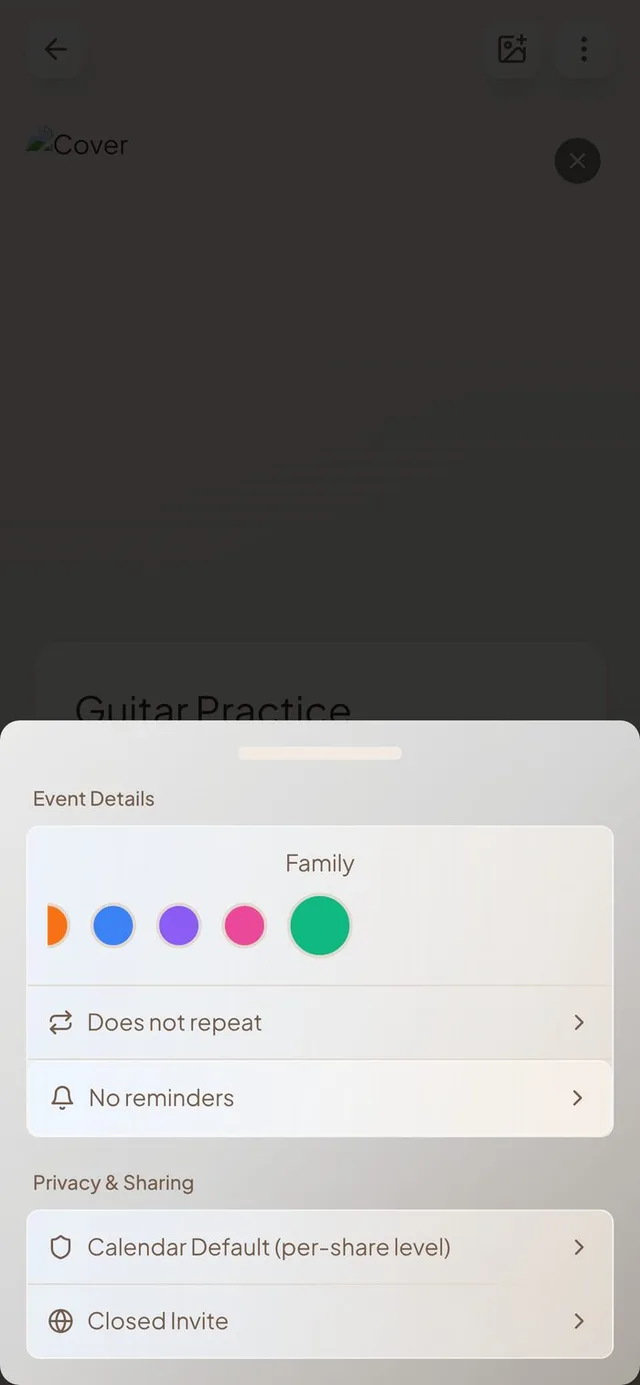
Two clear sections. Calendar, repeat and reminders sit together under Event Details. Visibility and invites sit together under Privacy & Sharing.
Invite options start off. New events no longer open to others or notify your connections unless you turn those on.
Buttons stay put. The back, cover and settings buttons stay at the top of an event while you scroll.
Remove a guest's reply. As host, you can remove an RSVP from someone you invited by link.
Holidays and calendar headers
Holidays look festive and headers stay readable.
Holiday photos. Days with a holiday show a photo in the calendar cell. Cinco de Mayo is included.
Headers that behave. The weekday headers in Week and Month no longer let events show through behind them, whatever background you picked.
Full titles in Week view. Event titles wrap onto more lines in events that are an hour or longer.
Smaller improvements
A few more fixes.
The bottom bar is wider and sits lower, closer to the edge of the screen.
Event text is readable again in dark mode.
The address suggestions list no longer hides behind the action bar.
The Google sign-in spinner no longer gets stuck if you close the browser early.
July 2 to July 8, 2026
Navigate Conmigo with a new floating bottom bar
Home, Where, Calendar and Profile sit in a rounded bar beside a Create button. Plus plans inside plans and trip links.
A fresh look for getting around
The phone app is lighter, and your content shows right to the bottom of the screen.
A floating bar. Home, Where, Calendar and your Profile now live in a small rounded bar in the middle of the screen. Your content softly fades out behind it.
A new Create button. Adding an event is a round orange button next to the bar, so it is always easy to reach.
Orange means you are here. The tab you are on is orange everywhere, including Where and Calendar.
Computers stay the same. On a big screen the top bar works as before. iPads in portrait now get the bottom bar too, where there was no navigation at all.
A better Month view
The month now fills your screen and scrolls the way the week does.
Fills the screen. The days stretch to fit your phone. On shorter phones the rows shrink a little so more of the month fits.
Scrolls under the weekday row. The letters S M T W T F S stay at the top while the days slide behind them.
Clears the bar. The last week stops just above the floating bar instead of hiding under it. Week and Year views do the same.
Plans inside plans
Big trips can now hold smaller plans, which can hold even smaller ones.
Three levels deep. A trip can have a day, and a day can have a dinner. They show up indented in the event and in the Today panel.
Drag to organise. Press and hold an event, then drop it onto a bigger event to put it inside. You can also move events that are already in a trip to another trip. If a move is not allowed, you see why.
Clearer trips. Each stop in a trip has a bigger title with its dates underneath.
Share a trip with a link
Send your itinerary to people who do not have Conmigo.
Two kinds of link. Share a view-only page, or let guests reply to each stop on the invite page. You can turn the link off at any time and the same link comes back when you turn it on again.
Dates you can see. Shared itinerary pages now show both the start and end date of a multi-day plan.
Removing an invite link really removes it. Tapping the X on the invite link while editing used to only hide it. Now the link stops working.
Smaller improvements
A few more fixes.
The new Exported Calendars page in Settings lets you subscribe to your Conmigo events from other calendar apps.
You get a reminder to reconnect when a Google, Outlook or Apple calendar stops syncing.
Google events no longer disappear when a friend declines or an invitation changes.
Remove Photo and Remove Video now react instantly.
Events show a time zone, like PST, when it differs from yours.
Events inside a trip that span several days show correctly in Week view.
On iOS widgets, an event that is happening now stays visible with a countdown to its end.
June 25 to July 1, 2026
See which events are happening now on Home
Events in progress get a green “Now” badge on Home. Plus cleaner moving profile pictures and texts for guests.
Home shows what is on right now
A quick glance tells you what has started and what is still to come.
A green “Now” badge. Events that have started and not yet ended show a pulsing “Now” badge, in both Your Plans and Their Plans.
“Done” means done. An event only shows “Done” once it has actually ended. Your row also scrolls so an event in progress stays in view.
Swipe between days. In the Today drawer on your calendar, swipe left for the next day and right for the day before. Scrolling the list still works as usual.
Moving profile pictures
Your moving picture now looks clean and shows up where it matters.
Cleaner look. Moving pictures sit on a clean orange circle, with no initials showing through behind you.
Plays where it counts. Your moving picture plays on your profile, in the event window and in the top bar on computers. Smaller avatars stay still.
Moving pictures for contacts. The Add Contact screen now has the same picture picker as your own profile, including a moving picture.
A calmer calendar
Events stop jumping around, and times read the same everywhere.
No more flicker. Your calendar now only updates the events that changed, so events stop disappearing and coming back. It also opens faster.
One clock. Event times in your calendar and on Home show in your own local time. An event's detail page keeps its own local time and says “local time” when that differs from yours.
Why you can't edit. Events from a subscribed calendar now explain that they are read-only and where to change them. Events that synced from Google, Outlook or Apple can be edited and deleted again.
Guests get texts and a better invite page
People you invite by phone stay in the loop.
Texts for guests. Guests who opt in get a text when they say yes, when the time or place changes, and two hours before the event. They can reply STOP at any time.
Cancellations reach everyone. If you delete an event, guests are told, and no reminder fires for it afterwards.
Better invite page. Invite links show the event's own cover in previews, replies appear live for everyone, and guests see a Download button after they respond.
Smaller improvements
A few more fixes.
A new phone-number sign-in on the iPhone app, with a code sent by text.
The first screen before you sign in has a larger logo and a Continue button near the bottom.
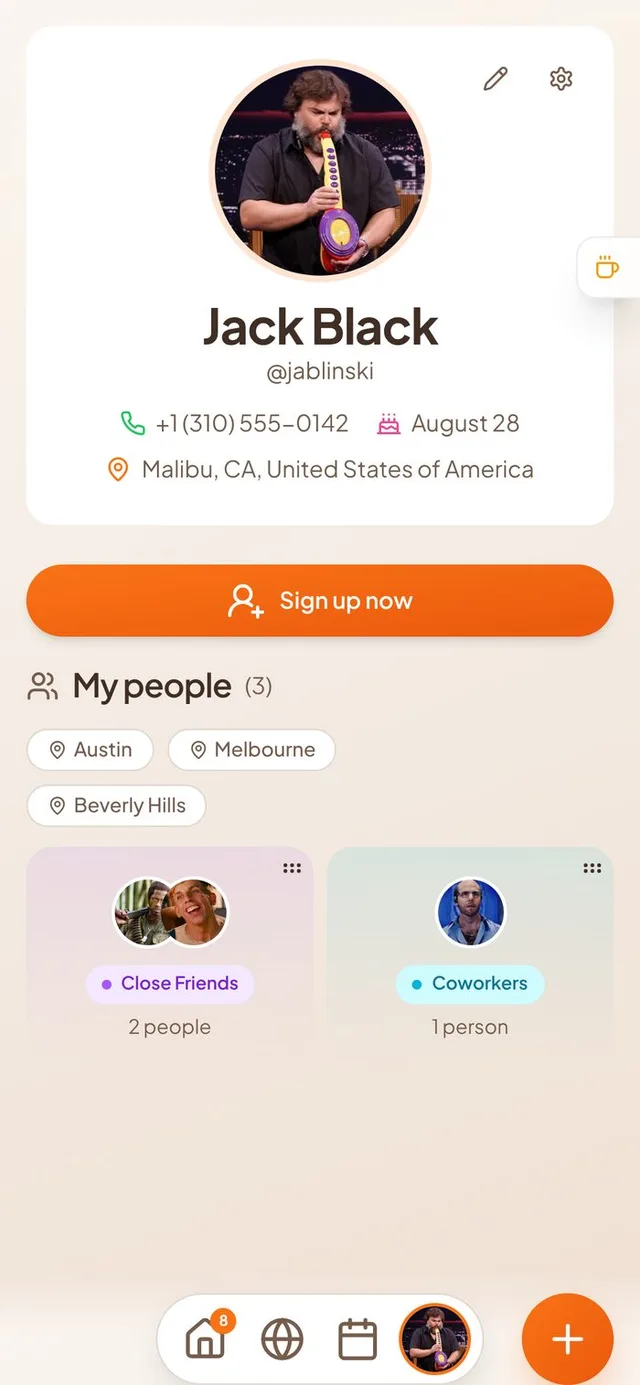
Try-out accounts now show a Sign up now button on the profile page.
Reordering calendars with an Apple Pencil works again.
Friends' pins on the Where map stay put while you zoom the globe.
Profile photos and event covers open in Conmigo's own cropper on iPhone, so you can pan and zoom freely.
The cropper no longer pops back open after you accept a crop, and sticker and GIF covers land where you placed them.
June 18 to June 24, 2026
Subscribe to any calendar link in Conmigo
Paste a calendar link and its events appear in Conmigo. Home is clearer, today stands out, and the Where map is friendlier.
Subscribe to a calendar link
Sports schedules, school calendars and anything else with a link now live next to your own plans.
Paste a link. Add a public calendar link (a .ics or webcal address) from Settings or while setting up. Its events appear in your calendar and update on their own.
Read only. Subscribed events can't be edited from Conmigo. Remove the subscription and its events go with it.
A clear warning. If a subscribed calendar stops loading, Settings now says why and when it last refreshed.
A clearer Where map
Busy places read at a glance, and your friends can say hi.
Stacked event cards. Events in the same spot stack like a deck with the soonest on top. Cards show up sooner as you zoom in, and they are smaller.
Friend groups. Groups of friends sit on top of the events they are at, and homes fade into the background.
Send a vibe. Press and hold a friend's picture to send an emoji. It circles their picture for 24 hours and they get a notification.
A better Home
Your Plans shows what is next and drops what is old.
Starts at what is next. The Your Plans row scrolls to your next upcoming event instead of the oldest one.
No stale invites. Invites and Hosting show only events from today up to a year ahead. Events hosted by someone else on Google, Outlook or Apple now count as invites.
Matching pills and cards. The filter pills are solid again and the cards line up with them. The soft fade at the edge of the rows is gentler.
Correct times. Event cards now show the same start time as the event page, and events near midnight land on the right day.
Today stands out
Find today faster in every calendar view.
Blue today. Today's date and weekday turn blue in the Month, Week and Year views and on the day's event list.
Snappier calendar. Switching views, moving between months and opening events feels quicker.
Smaller improvements
A few more fixes.
Links in event descriptions and comments are tappable. So are email addresses, phone numbers and street addresses, which open in Maps.
Sign in with Apple is available on the sign-in screens.
The forecast shows your real city name.
The Show declined events switch now works in the Year view.
Apple calendar invites show the host's real name.
Event covers and photo cropping work on the iPhone app again.
All-day and multi-day events stay in the same row across the Week view.
June 11 to June 17, 2026
Show your events on the Where map with Open Invite
Open an event to friends and it shows on their map. Conmigo also adds Outlook calendars, a new welcome flow and faster ways to clear people.
Events on the Where map
Plans with a place now live on the map, not just on your calendar.
Your events are pins. Every upcoming event with a place appears on the map as a card with its cover photo, title and time. Tap one to open the event and answer it.
Open Invite. Switch on Open Invite in an event's options and the event shows on the map of every confirmed friend. They can open it and say they're coming, even without a shared calendar.
Let your network know. When you open an event, your friends get a notification on their phone that they can join. A second switch lets you keep an event on their map without sending the alert, and friends can turn these alerts off in their own settings.
Cleaner cards. Cards that sit close together now slide apart as you zoom in, with a line back to the real spot. Events that already ended leave the map, and your home now shows as a little house on a cloud.
Outlook calendars
Microsoft Outlook now works the way Google and Apple calendars do.
Connect Outlook. Add your Outlook calendar from Settings and your events show up in Conmigo. Tap Sync Now to fetch them right away and watch the progress. A failed connection tells you what went wrong.
Changes go both ways. Edit an event in Conmigo and it updates in Outlook, and the other way round. Repeating events are included.
No more double events. Events you create in Conmigo no longer come back as a second copy from Google, Outlook or Apple, even if the other calendar changes the title or the start time a little.
A new welcome flow
Setting up takes fewer steps and gets you to your friends faster.
Pick up where you left off. Connect your calendars, bring your friends, then you're all set. You can skip any step and come back to it later.
Find friends in your contacts. Adding contacts now shows which of them already use Conmigo, so you can connect with them in a tap.
Your own invite link. Each person gets a personal link. Anyone who joins through it becomes your friend automatically.
Your people, easier to manage
Clearing out a big group no longer means removing people one by one.
Remove a whole group. Press and hold a group on the My people page, then tap the red button to remove everyone in it. Or press and hold one person and tap others to remove several at once.
Undo. After a removal you get a few seconds to tap Undo. Your people and their shared calendars come back.
Last seen. When two friends who share live location spend time near each other, a “Seen … ago” label shows under their name, on the People page and in their profile.
Smaller improvements
A few more fixes.
Events you declined are hidden from your calendar and lists, with a switch to show them again.
Itineraries: drag your own synced events in, pick several events at once to add, and see events grouped by day.
Year view month names and day numbers no longer bleed into each other.
Google calendars keep the colour they have in Google.
Adjust your profile photo without choosing it again.
Home cards show the right start time and day label for events in other time zones.
Invite links made on iPhone now open properly for the people you send them to.
June 4 to June 10, 2026
Group your calendars and drag events to move them
Sort your calendars into groups, then move or add events by dragging them. Conmigo also opens faster and works offline.
Calendar groups
Lots of calendars? Sort them into groups you name yourself.
Drag calendars into groups. Press and hold a calendar in the Calendars menu, then drop it on a group. Drop it on “New Group” to start a new one. Drag a calendar out to ungroup it.
Reorder everything. Drag groups and the calendars inside them into the order you like. A group disappears when you drag its last calendar out.
Collapse and hide in one tap. Fold a group away with its arrow, rename it with a double tap, or use its eye to show or hide every calendar inside it.
Shared calendars remember. Hiding a calendar someone shared with you now sticks, instead of coming back when you leave the screen or sign in again.
Move and create events by dragging
Press and hold, then drag, like in other calendar apps.
Move an event. Press and hold an event in the week, month or year view, then drag it to a new time. Events you own that sync with Google or Apple Calendar can move too, and the change goes back to them.
Create an event. Press and hold an empty spot, then drag to choose the time or the dates. The new event form opens already filled in.
A gentle buzz. Your phone ticks as you drag across times, and buzzes right away when you pick up an event that can't be moved.
Repeating events. You can cancel, move or change a single day of a repeating event, and its reminder follows.
A faster calendar that works offline
Your calendar is there when you open the app, even with bad signal.
Instant calendar. The app keeps your latest events on your phone, so your calendar shows right away and you can look at it with no connection. Opening the app after a long break no longer leaves it empty.
Create events offline. New events appear straight away and send themselves when you are back online, without duplicates.
Google reconnect. If your Google connection expires, Settings now tells you to reconnect instead of your Google events quietly disappearing.
Still Planning, house markers and privacy
Small changes to what you see first on Home and Where, and in Settings.
Still Planning tab. Your Plans has a new Still Planning tab. It is empty for now while we build the way to mark events as still being planned.
A house for friends who are away. On the Where map, a small floating house shows a friend's home when they are somewhere else, if they share their live location and full address.
Privacy settings split. Settings now has a Privacy page for your address and live location, and a Preferences page for time zone, notifications and the AI options. AI options start switched off.
Smaller improvements
A few more fixes.
Your profile address wraps onto two lines instead of running off the card.
A repeating event no longer hides your other plans on Home.
The filter buttons on Home no longer jump sideways when you tap them.
The Conmigo logo is back at the top of Home.
Tapping your picture opens the People pane on Home, Where and Calendar.
Friends' photos on the map load more reliably on iPhone.
Smart scheduling suggestions work again when the AI option is on.
May 28 to June 3, 2026
Pick which contacts to add to Conmigo
Choose the people you want from your phone contacts. Plus clearer sharing screens and a wider profile panel on computers.
Choose your contacts
Connect contacts no longer pulls in your whole address book at once.
A real contact picker. You now see your phone contacts in a list with search, and tick only the people you want. Contacts you already added are marked “Added”.
See who is on Conmigo. Contacts who already use Conmigo carry an “On Conmigo” badge. Choosing them sends a friend request, and the others are saved as contacts.
Invite by text. For people not on Conmigo, you can choose to draft a text message inviting them.
Matches by email too. Contacts are now matched to Conmigo accounts by email as well as phone number, so more of your friends are recognised.
Protected lookup. Checking contacts against Conmigo accounts is now limited in how often and how many you can check at once, so nobody can scan for who has an account.
A tidier Who page
Your profile and your people look right on a phone.
Home address stays inside your card. A long address now shortens neatly with an ellipsis instead of spilling outside your profile card.
Friend photos show on iPhone. Groups in My people showed a “?” in place of photos on iPhone. They now show the real photo, or initials when there is none.
Clearer sharing and buttons
Easier to read in light and dark mode.
Share calendar fits your phone. Long email addresses are shortened so the Selected label and the Share button are no longer cut off.
Bolder checkmarks. The tick in a checked box is larger and easier to see.
Stronger orange buttons. Orange buttons are a little deeper, so the white text on them is easier to read.
Conmigo logo in dark mode. The wordmark at the top of the phone screens turns white in dark mode so you can still read it.
Sign-in and welcome
New people get the right first steps.
Welcome after Google sign-in. New people who sign in with Google now see the first-time welcome that asks them to connect their calendar. Before, only email sign-ups saw it.
Timezone question is readable. When your device is in a different timezone, the message now sits above two buttons, “Keep” on the left and “Use” on the right. Before, the words were squeezed into a narrow column.
Smaller improvements
A few more fixes.
A new Feedback button sits under Buy me a coffee and opens our Discord.
The profile panel on computers is now wider, so it no longer gets cut off.
The public invite page no longer has a logo overlapping the cover photo.
Orange status dots for attendees are a little deeper in colour.
May 21 to May 27, 2026
A wider profile window on computers
Your Conmigo profile now opens in a roomier panel on bigger screens.
Roomier profile on desktop
Your people no longer get squeezed into a narrow panel.
A panel that grows with your screen. When you open My profile from your picture at the top of the calendar on a computer, the panel that slides in from the right is now wider on larger screens. It grows in steps, so a big monitor gets the most room.
More of My people fits. The second card in My people used to be cut off. With more width, the cards have room to show side by side.
Phones stay the same. Nothing changes on a phone, and the panel still leaves a strip of calendar visible so you can tap outside it to close it.
Smaller improvements
A few more fixes.
A quiet week: this was the only change you can see.
May 14 to May 20, 2026
Add your people in one tap from My people
Find friends, connect contacts or add someone by hand from one window. Plus alerts that reach you when Conmigo is closed.
Add your people
Building your list of friends is now one button away.
One round button. The always-open search box on My people is gone. A round orange button opens an “Add your people” window instead, with search, a “Connect contacts” choice, an “Add manually” choice and a grid of people you can add with a plus.
A friendlier empty page. If you have nobody yet, My people shows bigger dog avatars with orange plus signs and a larger button to get started.
A roomier grid. Open a group and your people sit in two columns on a phone and three on a computer. Names and cities show in full, and the menu button is easier to see.
No more empty flash. Coming back to My people no longer shows the “no people yet” page for a moment before your friends appear.
Alerts when Conmigo is closed
Settings now calls this “External Notifications”: get notified when you don't have Conmigo open.
More things reach you. You now get an alert when a friend accepts your request, asks to see your calendar, changes an event or cancels one, or comments on an event.
Comments reach the right people. The host and every guest who said yes hear about a new comment. You don't get an alert for your own.
Photo ready. The host gets an alert when a photo added to an event's memories is ready.
Fewer cancel alerts. Guests who already declined an event no longer get a message when it is cancelled.
Tap to land in the right place. Comment and cancel alerts open the event, share requests open the calendar and memory photos open the Memories tab.
Moving profile pictures
Your short profile video shows up where it should.
In your calendar header. The small picture next to the bell and the Calendars menu now plays your moving profile.
The right still picture. The event feed and Week view show a still from your new recording, not your old photo. Re-uploading works reliably.
You choose when the background stays. If removing the background fails, Conmigo asks you to “Try again” or “Save anyway” instead of quietly saving a video with the old background.
Who is coming
Guest lists now match what really happened.
Guests who reply to your link. When someone taps “Going” on your shared invite link, they now appear in the Who section of your event.
The host shows once. Events synced from Google or Apple calendars no longer list the host twice.
Accepted requests open the friend. Tapping “accepted your friend request” in your notifications opens that friend's profile instead of a page-not-found screen.
Smaller improvements
A few more fixes.
Favorite friends, muted friends and chat messages are gone.
Menus now highlight the row under your finger or pointer.
Menu icons on My people move slightly when you hover.
Dark mode highlights are easier to see.
Conmigo is easier to find in search engines.
May 7 to May 13, 2026
Your people, grouped into clusters on your profile
My people now shows friends in tidy groups, and reminders reach you even without signal.
My people in clusters
Your friends and contacts used to be one long list. Now they sit in groups you can see at a glance.
A wall of groups. My people on your profile shows each group, such as Close Friends or Coworkers, with a few faces and a count. Tap a group to open the people inside it.
Friends and contacts together. People you added by hand can now sit in the same groups as friends who use Conmigo, and you can move them between groups.
Search inside a group. Open a group and tap the search icon to find someone in it. Every person card has a menu button that is always visible.
Filter by city. A row of city pills replaces the old city dropdown, and you can pick more than one.
Find new people separately. People on Conmigo has its own search box, so you can look up someone who is not a friend yet without opening a group.
A friendlier empty My people page
A new profile no longer shows a single line of grey text.
Your people, all in one place. With nobody added yet, you see a card with a short explanation and a clear button to get started.
Connect contacts. On phones and browsers that allow it, you can bring in people from your contacts in one tap. If that is not possible, the card offers Add someone manually instead.
Never stuck. If you decline access to your contacts, Conmigo opens the add person form so you can keep going.
Reminders that work offline
Event reminders on iPhone now arrive on time even when you have no signal.
Reminders stored on your phone. Your upcoming reminders are set on the iPhone itself, so they go off on time in a tunnel or on a plane.
Repeating events and your own reminders. Daily, weekly, monthly and yearly events keep reminding you for months ahead. Reminders you set for events you do not own work the same way.
One banner only. You do not get the same reminder twice. If your phone already has it, Conmigo does not send another.
Reminders stay full. After a reminder goes off, the next one in line takes its place, so newer events are not left without a reminder.
Smaller improvements
A few more fixes.
Friend search finds people reliably again when you type a name.
The eye button for all calendars flips every calendar at once instead of one by one.
A moving profile picture uploads after background removal instead of showing a wrong camera error.
Copied invite links open correctly for guests when you copy them from the iPhone app.
Repeated group labels are gone from inside each group.
Reminders fire closer to the exact minute you chose.
Apr 30 to May 6, 2026
Add your own events to a friend's itinerary
Plan trips together in Conmigo. Reminders also arrive on time, and your calendar stops flickering.
Build an itinerary together
A trip plan no longer belongs to one person.
Add your own events. If a friend invites you to an event or shares their calendar with you in full, tap Add in its Itinerary and pick one of your own events that fits inside it.
The host hears about it. When someone adds an event to your itinerary, you get a notification and a push. Adding an event to your own itinerary stays quiet.
Take your event back out. If your event was pulled into someone else's itinerary, you can now remove it with the X. A message says “Removed from” and the event's name.
Reviews stay with the place. Reviews of a venue you pick are now saved with the event, so the Reviews tab is no longer empty after you save.
Reminders that arrive
A reminder is only useful if it shows up.
Your reminder choices save. Changes made in the reminder picker, including pressing Confirm, now stick. Before, some edits were lost.
Late and early reminders fire. A reminder due while Conmigo was restarting now goes out when it comes back. Reminders set more than two days ahead now fire too.
On your iPhone lock screen. Event reminders now show up right away, even in Low Power Mode or a Focus. The test notification button is gone.
Richer desktop reminders. In Chrome on Windows or Mac, a reminder shows the event's cover picture with View event and Snooze 10 min buttons, and stays until you dismiss it. Old, dead notification links are cleaned up so the live one gets through.
Event times that stay right
The clock time you picked is the clock time you get.
Your time zone when you create. A new event uses the time zone of the device you are on. If it differs from your home time zone, a banner offers “Use” the new one or “Keep” your home one.
Repeating events hold their hour. A 9 AM daily event stays at 9 AM across daylight saving changes instead of drifting by an hour.
Home time zone in Settings. You can now pick your home time zone from a list.
A calmer calendar
Fewer blank flashes, and deleting works.
No flicker. Events no longer vanish and reappear when you change months or come back to the calendar tab. The calendar also keeps your month, view and scroll position.
No blanks on tab return. Switching browser tabs and coming back no longer blanks your events, profile picture and weather.
Deleting events works. Events with comments, replies, photos or check-ins now delete cleanly, and the “Unauthorized” message when deleting is fixed.
Apple events vanish everywhere. Deleting an Apple Calendar event on one device removes it from your other devices right away.
Smaller improvements
A few more fixes.
The weather pill is back, shows the temperature for the current hour, and uses where you are now.
A new profile photo shows up everywhere right away, and moving picture errors now say what went wrong.
On iPhone, the Settings close button and pop-up messages sit below the status bar.
Connecting Google Calendar on iPhone TestFlight now finishes inside the app.
First-time users get a step-by-step welcome with the new Conmigo logo.
The Itinerary section stays hidden on events that have nothing in it.
Apr 23 to Apr 29, 2026
iPhone screens that clear the status bar
Your Conmigo calendar, profile and event screens no longer hide under the iPhone clock, and notifications are easier to turn on.
Nothing hidden on iPhone
Buttons and rows used to slide under the clock, signal and battery. Now they sit where you can tap them.
Calendar and profile move down. The Week, Month and Year buttons and the date row no longer sit behind the time and battery icons. Your profile screen gets the same fix.
Event and Settings screens. The back arrow and title now start below the status bar. Event cover photos still reach the very top of the screen.
The last row of your month is visible. The bottom week of the Month view used to be covered by the bottom bar. It now has room, and the “+ more” count adjusts to the space you really have.
Status bar icons match your background. Pick a dark background such as Midnight or Stars and the clock and battery turn light, so you can read them.
Photos load on iPhone
Pictures that showed up as initials or blanks on iPhone now appear.
Venue and cover photos. Venue galleries, review photos and the GIF, sticker and photo choices for an event cover now load. Memory photos on the Year view show up too.
Your iPhone's own photo picker. Choosing a profile photo, an event cover or a contact photo opens the normal iPhone camera and photo library. Profile and contact photos come out square. If you refuse access to your photos, Conmigo tells you.
Quicker first screen. The picture sphere shows its photos as soon as you open the app.
Turn on notifications
Notifications are easier to set up, and Conmigo tells you when something goes wrong.
iPhone notifications. A missing step kept iPhones from receiving notifications at all. It is fixed, and it takes effect with the next app update.
A “Turn on notifications” banner. On the web, signed-in people who haven't decided yet see a banner they can dismiss. Safari on a Mac asks you to add Conmigo to the Dock first.
Clear messages and a test button. If the switch in Settings can't turn on notifications, you now see why, and it stays off. When notifications are on, “Send a test notification” shows whether they reach your device.
Held for a day. A notification that arrives while your browser is briefly offline now waits up to a day instead of being lost.
Safer invites and sharing
People only see and change what you meant them to.
Personal code for closed invites. A guest on a shared invite link enters the personal code the host gave them before they can claim their spot, reply or comment.
Accepting doesn't rewrite your event. When someone accepts an invite, they can only pick from the times and places you offered. They can no longer change the event's time or venue.
Your sharing levels hold everywhere. Busy only and Title only now apply when a friend opens a single event, not just in the calendar. A friend's profile shows your exact home location only if you share your address.
Smaller improvements
A few more fixes.
Only the host and the guests can see an event's invite list.
Find a time works only with your own friends.
Uploads accept photos, PDFs, audio and video up to 10 MB.
Duplicate birthday events are cleaned up.
The Privacy Policy has a new section on text messages, including STOP and HELP.
Quiet Hours is no longer in Settings.
Apr 16 to Apr 22, 2026
Delete your Conmigo account whenever you want
Hold one button to remove your account and data, and keep your demo calendar when you sign up.
Delete your account
You decide what happens to your data, and it takes one deliberate hold.
Hold to confirm. In Settings, below Log Out, a Delete Account section asks you to hold its button for five seconds. A progress fill shows how long is left, and your phone gives a small buzz when you start and when it finishes.
Everything goes. A clear warning lists what is removed: your calendars (including ones shared with friends), events, friends, messages, photos, notification subscriptions and connected Google and Apple accounts. When it finishes, you are signed out and sent back to the start page.
Log Out stays separate. Logging out sits above the divider, so you never reach the delete button by accident.
Keep your demo when you sign up
Try Conmigo first and make it yours later.
Your demo becomes your account. Calendars, events, friends, messages and photos from Get Started Free carry over when you create an account. Nothing needs to be re-entered.
Already have an account? If you sign in with an account you already own, Conmigo tells you your demo session was set aside. If the carry-over ever fails, you see a message instead of silence.
Sign up with a six-digit code. Enter your email and a password, then type the code Conmigo emails you. Already registered? You are taken to sign in with a note explaining why.
Sign-in takes you to your calendar
No more landing on the wrong page after you sign in.
Straight in. Signing in with email on the home page now opens your calendar. Before, you stayed on the home page until you tapped Get Started.
No flash after Google. Coming back from Google sign-in no longer shows the home page for a moment before your calendar appears.
The window closes itself. The sign-up window closes as soon as your account is verified or you sign in.
Settings that open and save
Fixes for the places people got stuck.
Settings opens every time. The Settings window no longer sits on a spinning wheel, and it fits phone screens.
Saves and syncs work. Saving your profile works again. Google Sync Now updates its last-synced time instead of staying on Never synced, and Apple Calendar shows when it last synced.
Profile photos upload again. Uploads from Settings work again. If one ever fails, you see a clear message instead of a vague error.
Push notifications stay on. The Push Notifications switch no longer bounces back to off after you allow notifications.
Smaller improvements
A few more fixes.
Every account now has a Birthdays calendar, including older accounts that were missing one.
New events save to your own calendar instead of failing with an error.
Calendar switches and notification read marks no longer jump back after you tap them.
Your profile page loads faster.
The memory gallery is off by default for new users.
Past days outside the current month show memory photos like every other past day.
New accounts no longer clash over usernames.
Apr 9 to Apr 15, 2026
Crop and place your event cover picture
Pick a cover and place it how you want, and invites show everyone by name and photo.
Cover pictures you can crop
Choose a cover, then place it exactly where you want it.
Crop after you choose. Picking a GIF, sticker, stock photo or your own upload opens the cropper. Drag to move the picture, and pinch or scroll to zoom. Gradient covers are not cropped.
Shapes that fit your screen. Covers are 5:4 on phones and a wider 5:2 on desktop. On an event with a cover, the back arrow now sits at the top left.
Invites that show the right people
Guests and friends appear with their names and photos.
Names instead of Unknown. Friends on a simple invite page, and in an event's invite list, now show their name and photo.
Replies show up on their own. When a guest without the app answers an invite, the host's event page updates by itself.
Smaller improvements
A few more fixes.
The website's top bar has a Sign In button with a mail icon, which opens email sign-in.
The demo no longer signs you out when you move between pages.
Apr 2 to Apr 8, 2026
Keep Google Calendar and Conmigo in step
Changes now travel both ways with Google Calendar. Guests can RSVP from an invite link, and place search shows full addresses.
Two-way Google Calendar sync
Your Conmigo calendar and your Google Calendar now match.
Changes go both ways. When you create, edit or delete an event in Conmigo, your linked Google Calendar is updated too. Events that someone else hosts are left alone.
Changes in Google come back. Conmigo checks your Google Calendar about every 5 minutes and brings in what changed, including events you cancelled there.
RSVP from an invite link
Anyone with the link can answer, even without Conmigo.
Open invites. A guest types their name, adds a phone number if they like, and taps to accept or decline. A “Keep me updated” box asks for updates about the event.
Confirm your number by text. To get updates, a guest enters a code sent to their phone. A welcome text follows once they RSVP.
“Are you coming?” comes first. The RSVP section now sits above the activity feed, and the extra “Try Conmigo” banner is gone. The right start time shows for guests in any time zone.
One button for the link. In your event, “Copy Invite Link” makes the link the moment you tap it and copies it. Only the host sees the invite link section.
Place search with full addresses
Finding the right spot for an event takes fewer taps.
Real place suggestions. After two letters, you see matching places with their name and full address. Choosing one starts the usual venue check.
Recent places and keys. Tap the empty field to see places you used lately. On a computer, the arrow keys, Enter and Escape work in the list.
Try Conmigo, then sign up
Explore mode now leads you to a simple sign-up.
A sign-up pop-up. In explore mode, the gear and pencil in your profile panel open “Sign up to access more features”. It lists connecting Google Calendar, managing shared calendars and customizing the look.
Google only. The sign-up offers Continue with Google. The phone and Apple options are gone.
Log out and a cleaner profile. The pop-up has a Log out button that takes you to the home page. The old login page is gone, and the made-up username no longer shows.
Faster demo. The demo calendar opens right away instead of making you wait a few seconds.
Buy Me a Coffee. A small note, “Let me know you want me to keep working on this,” links to Buy Me a Coffee. In explore mode it is a card you can close.
Smaller improvements
A few more fixes.
Adding a contact has one “Invite to Conmigo” box. It sends the invite by email, text or both, depending on what you filled in.
You can edit your email in your profile. It saves when you leave the field, and an invalid address is refused.
An event you open now has a back arrow instead of an X, and the cover reposition button is gone.
The search and notification drawers and the profile panel are no longer see-through.
New accounts start with a plain solid background, and the glass look is switched off for everyone.
The Conmigo home page now shows each feature with screenshots and a short video.
Mar 26 to Apr 1, 2026
Sign in with your phone and see your calendar first
Conmigo now opens straight to your calendar, with Search and Notifications in the bottom bar.
New sign-in screen
Three ways in, all on one screen.
Sign in with your phone. Tap “Continue with Phone”, enter your number and type the verification code we text you. It sits first on the screen, above Google and Apple.
Google and Apple. “Continue with Google” and “Continue with Apple” now look alike. The card says “Sign in / Sign up to continue” and floats over a slowly turning gallery of photos.
Stay signed in. If your sign-in runs out while you refresh the page, Conmigo signs you back in instead of sending you away.
Log out works the first time. Before, logging out could drop you back on your calendar as if nothing happened. Now you leave right away.
Your calendar comes first
The Home and Where pages are gone, and the calendar has room to breathe.
Straight to your calendar. Opening Home or Where now takes you to your calendar. The side menu on computers is gone too.
A new bottom bar. From left to right: Search, Notifications, New Event, Calendar and your picture. Search looks through your events and friends.
Notifications in one place. The bell opens a panel with three tabs: Invites, Requests and Updates. On phones it fills the lower part of the screen and scrolls all the way down.
Search on computers. The search box in the calendar toolbar now filters your events by title, description and place. The Today list follows it.
Profile slides in on computers. On wide screens your profile opens as a drawer beside the calendar, with a back arrow to close it. The year view is always wide, so the expand button is gone.
Calendars and Settings
Show and hide calendars faster, with fewer switches to wade through.
Eye to show or hide all. In the calendar list, an eye above “My Calendars” and “Shared with me” turns every calendar in that section on or off at once.
New calendars live in Settings. The plus button left the calendar list. Open Settings, then Conmigo Calendars, and tap “New Calendar”.
A simpler Settings. The Transparent Panels, Email Notifications and Live Location switches and the Help row are gone. Your email now shows, read-only, in Edit profile.
A cleaner start. New accounts begin with a Birthdays calendar only, with no empty Personal calendar.
Try Conmigo before you sign up
The Conmigo website now shows the real thing.
A live preview. The home page shows a working Conmigo calendar. It scrolls smoothly on phones, and the moving photo gallery no longer catches your swipes.
Get Started opens a practice calendar. Tap “Get Started” and you land in an empty yearly calendar to explore, with no sign-in first.
Smaller improvements
A few more fixes.
Event invites now read “Going” and “Can't Make It”, and the Close button is gone.
Friend cards no longer show an “Available” status.
Your birthday saves with your real birth year.
Time labels like “12a” are fully visible, and multi-day events sit closer together.
On iPhone, buttons, switches and delete warnings now give a small tap.
Names like “User” followed by numbers show a real username instead.
Mar 19 to Mar 25, 2026
A new profile page and guided guest invites
Tap your picture to see your profile and friends in one place. Inviting guests outside Conmigo now takes four simple steps.
Your profile page
Your details and your friends now live on one page.
Your picture opens your profile. The Who tab in the bottom bar is replaced by your profile picture, with an orange ring when you are on that page. On computers, your picture and name in the sidebar open it too.
Friends below your details. Your name, phone, birthday and address sit at the top, with your “My people” friends list underneath. The gear opens Settings and the pencil edits your profile.
Block from the friend menu. Each friend's menu now has Block User, with a confirmation before it happens.
One profile view. Settings no longer shows a second copy of your profile. It opens straight to the settings list.
A guided page for outside guests
Inviting people who don't have Conmigo is now one clear page instead of scattered buttons.
Four steps on one page. Under attendees, a single External Invites button opens a full page. You pick the invite type (Closed or Open), choose who to invite, edit the message, and decide how the invite is sent.
Add people your way. Type a guest in by hand or import from your contacts. You can edit a name or remove someone from the list before you finish.
Pick the message once. The message box explains the [First Name] and [Link] placeholders. Done takes you back to your event with everything you entered still there.
Invites belong to your event. Proposing a time to a guest now saves your event first, so guest answers update that event instead of creating a second copy. Cancelling a new event removes what was saved.
Chat and RSVP for invited guests
Guests who open an invite link can follow along and join in.
See the activity. Guests see the event's comments and who said yes or no, in the same look as the app. The old “message from sender” box is gone.
Comment with photos and GIFs. Guests can type, send a photo from camera or gallery, or pick a GIF. Sending unlocks once they have answered, whether they said yes or no. Until then it reads “RSVP to comment”.
Keep me updated. A checkbox in the RSVP bar opens a phone number box, with the text-message consent shown beside it. Guests can opt out again later.
Shared links work the same way. Shared invite pages now have the same activity feed, comments, updates option and RSVP bar. The bar floats above the page and ends with a short “Try Conmigo” link.
Crop pictures before you save
Photos now fit where you want them.
Crop your profile picture. After you choose a photo, a round crop frame appears. Drag and zoom it, then confirm.
Crop event covers. Cover photos get the same drag and zoom crop, so the part you care about is the part that shows.
GIFs and stickers keep moving. You can move and zoom an animated cover into place, and your framing is remembered when you reopen it.
Smaller improvements
A few more fixes.
Tapping an event update in your notifications now opens that event, including answers from outside guests.
Guests on an event now have matching badges: gray with an X for declined, yellow for no answer yet.
The Google Calendar Sync Now button shows its progress, like “Fetching calendars...” and “Done! 5 synced”.
Send buttons on event and invite pages use an orange gradient.
Conmigo.io has a new home page with an animated “IRL” headline, plus Privacy Policy and Terms of Service pages.
Travel time estimates for scheduling are more realistic.
Mar 12 to Mar 18, 2026
Invite friends without Conmigo to your events
Send invites by text, email or a shared link. Plus live location on the Where map and easier cover pictures.
Invite people who don't have Conmigo
Everyone can answer your event, whether or not they have the app.
Add guests from the Who section. The plus button now offers Open Contacts and Add Manually, where you type a name, phone number or email. Guests show up with a dashed orange border. The button also stays on events you already created.
Choose how invites go out. After you create the event, pick Send personalized invite automatically, Draft personalized invite to messaging app, or Generate general invite link. You can edit the message, and [First Name] and [Link] are filled in for each guest.
One link for guests with only a name. You copy a single shared link. Guests open it, pick their name from the list and add contact details if they like. They can come back later and change their answer.
A fuller invite page. Guests see the cover, who is coming with their photos, when, where and the conversation. Personal invites also have a switch to get updates about the event.
Covers, GIFs and profile photos
Find the right picture, then place it just so.
One place to pick an event cover. Choose from GIFs, Stickers, Pictures and Gradients, and search each one. Pictures come from Unsplash and say so. Upload from device is still there, now in orange.
Move and zoom before you save. Drag and zoom a cover picture or video until it sits the way you want.
Crop your profile picture. When you upload a new photo, you can move and zoom it inside a circle before it saves.
A GIF picker from the bottom. The GIF button now says GIF, and the picker slides up from the bottom of the screen. It no longer opens the keyboard on its own.
Live location on the Where map
Show friends where you are right now, only if you want to.
A Live Location switch in Settings. It says “Connections can see your live location on the map.” Turn it off and your position stays private.
No home address needed. Live Location now works even if you never entered an address. Your own marker on the Where map also follows where you are now.
Gentler on your battery. Conmigo checks your position more often while you are moving and less often while you stand still.
Replies, privacy and a new Who tab
Answer invites faster and decide who sees each event.
Accept or decline from notifications. Tap an invite in your notifications to open the event with its accept and decline buttons, or answer without opening it.
Privacy for a single event. In the event's settings, give one event its own privacy level instead of the calendar's default.
When, Where and Who. The bottom bar now reads Home, When, Where and Who. Who holds your people. Where has Map and My Places tabs, and My Places says “Coming soon!”
Settings opens on your profile. You see your profile first, like a friend sees it. Tap the pencil to edit, then the check to save. Go back instead and your changes are dropped.
Smaller improvements
A few more fixes.
Turn your phone sideways on the Year view to see it full screen.
The Home search bar opens over the header, and its text is no longer cut off.
Friends' names on the Who page are no longer shortened with dots.
An event with no location no longer says “No location”, and long descriptions wrap.
A new Conmigo logo, a spinning logo while the app loads, and one loading screen instead of three.
The landing page photo dome shows day numbers, spins slower, and tilts with your phone.
Mar 5 to Mar 11, 2026
A 3D globe map and a Home built around your week
See friends on a globe, plan your week from Home, and give events a cover photo in Conmigo.
A Home built around your week
Your plans and your friends' plans, sorted the way you think about them.
One Your Plans row. Your events and the events you are invited to now sit together, with pills for This week, Invites and Hosting. Each card shows Pending, Going or Can't go. The All pill is gone.
Pick the week for Their Plans. Choose Last week, This week or Future. This week is the one you see first.
A date that follows you. As you scroll the cards, the label above shows the day of the card on the left: Today, Tomorrow or the date. It now counts upcoming days correctly.
Go to Calendar. A card at the end of the row takes you to your calendar, so the row no longer scrolls on and on.
Cover photos and easier event pages
Events look like the plans they are.
Add a cover picture. Upload one when you create or edit an event. It fills the top of the event page, with the buttons laid over it.
A photo even without one. Event cards on Home use the venue's photo when there is no cover picture. Places now show the venue name first instead of the street address.
Memories in Week view. Events with photos show them as the background in the week, and a tap opens the photo. The same viewer now opens from the calendar, the timeline and the activity feed, with the event's title and date on it.
Your RSVP stays in reach. On a long event page, the Going choices float at the bottom of the screen while you scroll.
A globe for the Where map
Your friends' places on a map you can spin and tilt.
A real globe. The flat map on the friends page is now a globe, with a daytime look in light mode and a night look in dark mode.
Friends live in little houses. Each pin shows a house with the friend's picture floating above it. Pictures and labels are bigger, so they are easier to read.
Tap to fly in. Tap a friend to zoom in close. Tap a group of friends to zoom in on them. On a computer, the expand button now fills the whole screen.
Invite people to Conmigo
Add a contact and ask them to join in the same step.
Invite by email or text. When you add a contact, tick “Invite to Conmigo over email” or “Invite to Conmigo over text” and they get your invite.
Write your own message. The invite starts with a friendly message that uses their name and a link to Conmigo. You can change it before you send.
A window that scrolls. The add contact window now scrolls on short screens, so nothing is cut off.
Smaller improvements
A few more changes.
Tap the weather pill on the calendar to open a 10 Day Forecast with highs and lows.
The GIF picker has a Stickers tab, and chosen GIFs keep their full quality.
Delete, Cancel and Create Event stay at the bottom of the screen while you edit.
Date and time boxes center their text and get an orange border when you pick them.
On phones, the bottom bar uses larger icons without text, and the friends icon is now a map.
A new sign-in page with the new Conmigo logo, a cream background and a spinning wall of photos.
Calendars shared as busy only no longer show the event's cover photo or venue.
Feb 26 to Mar 4, 2026
Record a short video as your profile picture
Show up as a moving face in Conmigo. Plus memory photos on your calendar and a new Home.
Record a moving profile
A still photo is fine. A short video says more about you.
Record it in Settings. Tap Moving Profile next to your photo, allow the camera, and Conmigo counts you in before it records.
Approve before it's processed. You watch your raw recording first. Only after you approve does Conmigo show “Removing background...” and clear the space around you.
It moves everywhere you appear. Your avatar plays as a video in the app, and new events you host show it right away.
Memory photos on your calendar
The photos people post on an event come back to the day it happened.
A switch for it. Choose “Show memory photos” in the sidebar or the calendars menu. Past days then show a photo instead of event bars. “Hide memory photos” turns it off.
Month, Year and timeline views. Tap a photo day to open the photos full screen, with the event title above. Only calendars you are viewing are included.
Bigger photos in the activity feed. Tap a picture in an event's activity to enlarge it, then scroll sideways through the rest.
Repeats and reminders in the event page
Set when an event repeats and when you hear about it.
Repeat on a schedule. Pick every day, week, month or year with a scroll wheel. The event shows “Does not repeat” when you leave it off.
Reminders in weeks and months. Add as many reminders as you like. Each one shows as a chip, such as “1 week before”.
Your own reminder on friends' events. If you were invited, or a friend shares their calendar with you, you can set a reminder for yourself.
Invite people later. Adding guests while you edit an existing event now sends their invites.
A new Home
Four rows of plans, in cards you can scan quickly.
Four rows. Home shows Your Plans, Our Plans, Their Plans and Suggestions, in that order.
Taller cards with a countdown. Each card is a portrait picture with a badge for how long until it starts, such as Tomorrow.
Fewer buttons on cards. Review and Dismiss are gone from suggestions, and Accept and Decline from invites. Tap the card to open it.
Smaller improvements
A few more fixes.
Settings now opens as pages: Account Info, Conmigo Calendars, Shared Calendars and Synced Calendars.
Conmigo uses one font, Plus Jakarta Sans, across the app.
The map has a cleaner look and zooms more smoothly.
An event's three-dot menu opens a drawer where you choose its calendar.
The friends list gives names more room, with the group tag below the menu.
Demo accounts have a Join Waitlist button.
Feb 19 to Feb 25, 2026
A step-by-step welcome for new Conmigo accounts
New users set up their profile and calendars in a few taps. Guests now show as avatars on your events.
A guided welcome
New accounts now start with a short set of questions instead of a pop-up.
Tell us about you. The welcome asks for your name, birthday, phone number and address, and lets you upload a selfie. The address screen explains who can see it.
Connect your calendars. Link Google Calendar or Apple Calendar right in the welcome. Google now lets you choose which account to use.
Allow what you want. A Permissions step covers notifications, location and contacts, and a final “You're all set” screen greets you by name.
No flash of Home. While Conmigo checks whether you are new, you see a loading spinner instead of a quick glimpse of the Home screen.
Guests on your events
See who is coming at a glance, and fix the guest list when plans change.
Avatars on your events. Events with guests show their profile pictures or initials in your week view and in Today's events, up to three, with a count for the rest.
Remove a guest. If you created an event, you can take an invited guest off it. If you cancel your edit, the guest list goes back to how it was.
No adding by accident. The add friend button is hidden while you are only viewing an event.
Reply to Google Calendar events
Events that live in another calendar now behave the way you expect.
Accept, decline or maybe. You can answer an event hosted in Google Calendar from Conmigo, and your answer goes back to Google.
See the guest list. Guests from your synced Google and Apple calendars now show on the event, sorted by their reply.
No calendar mix-ups. The calendar picker is hidden on events hosted elsewhere, so you can't move them to a different calendar.
Friends map and profiles
Open your own profile from the map, and see friends where they choose to be seen.
Your own pin. Tap your own marker to see your profile. An edit button there opens your profile in Settings.
Privacy-friendly pins. A friend who doesn't share a full address appears at the center of their city.
Tidier profiles. Phone and birthday share one line, with the address centered below. Email no longer shows.
Smaller improvements
A few more fixes.
Events have a description section that hosts can edit and guests can read.
The activity feed now shows on events in calendars you have shared.
Tap a calendar color in the event window to pick it, and the title follows as you swipe.
The sparkle button now cleans up an event title only when you tap it, and you can tap it again.
On phones, Home has a Conmigo logo and a search icon, and search results appear in a list below it.
Weather updates right away when you change your home address in Settings.
People without a photo show two-letter initials everywhere.
Feb 12 to Feb 18, 2026
Clean up event titles with one-tap Undo
Conmigo tidies the title you type, and you pick how smart the event form should be. Plus a look at your own profile.
Titles that tidy themselves
Type an event the way you'd say it, and the form does the rest.
Shorter titles. After Conmigo fills in the time and place from what you typed, it removes those words from the title and keeps the plan and the names. A small Undo button brings your original title back.
Keep typing. Editing the title after the cleanup no longer collapses the form or starts the fill-in over.
NLP Event Adding has its own switch. In Settings, it only controls whether your title fills in who, what, when and where. The time and place recommendations stay in their own setting, which turns off when you turn NLP Event Adding off.
Quiet when it's off. With recommendations off, the suggestion banner and the suggested times and places stay out of the event form. New accounts start with NLP Event Adding off.
Pick a place, see it checked
The location field now works the same for everyone.
Place cards. When you choose a location, Conmigo looks up the venue and shows its card, whether or not NLP Event Adding is on. If there is only one match, it is picked and its address fills in.
Saved with the event. The venue you pick is now saved with the event instead of only the text.
Cleaner maps. The plus and minus buttons are gone from the event map, the venue picker and the friends map. Pinch and scroll still zoom.
Your profile and your people
See yourself the way friends do, and find people faster.
Open your own profile. Your own profile now opens instead of an error, with the note “This is how others see your profile.”
Edit from there. An Edit button opens Settings. When you save a change, your profile shows it right away.
City under each name. Your friends list shows each friend's city below their name.
Groups next to the name. On phones, the group button sits beside the friend's name, as it already did on computers.
Calmer Home and a way in
Empty cards say less, and the landing page lets you look around first.
Invites looks like Suggestions. When no one has invited you, the Invites row shows a mail icon and “No pending invites” in the same layout as “No suggestions yet.”
Shorter empty cards. The extra explanation and the grey box behind both are gone, so Home looks lighter.
Try Now. The landing page has a Try Now button under sign-in that opens a demo account. The tagline now reads “Time Together, Made Effortless.”
No more waitlist. In the demo, Google Calendar and Apple Calendar tell you to create an account to connect them, instead of opening a waitlist form.
Smaller improvements
A few more fixes.
The calendar view buttons now read Week, Month, Year, with Week first.
A new shared calendar color is picked to stand out from gradient colors already on screen.
Home Address in Settings explains itself in a small info tip, and the “Share full address” text is clearer.
The calendar, timeline and people pages use the full screen width.
Settings and event form headings and labels use a more consistent text style.
Feb 5 to Feb 11, 2026
Venue details and drive times on your events
See where you are going before you go. Plus a livelier event chat and friend suggestions that stay close to you.
Venue details on your events
A suggested place now travels with the event you save.
A venue card in the event. When you pick a venue for an event, opening the event shows it as a card, the same one you saw when choosing it. Tap it for more details.
Directions and contact. The card has a Get directions link that opens maps, a Contact button to call the place, and a More button for extra information.
Drive time on suggestions. Event suggestions from a friend now say how many minutes it takes to drive there and how many miles it is.
Places with a picture. Location cards in the event now use the place's photo as their background, with the name easy to read on top.
A livelier event chat
The comments under an event are quicker to read and to join.
Newest first, input on top. The latest comment shows first, and the box to write one sits above them. Camera, pictures, GIFs and file icons sit in a row over the text box.
Delete a comment with reactions. Comments that people reacted to with an emoji can now be deleted. Before, they could not.
Answer an invitation again. An invitation you replied to shows “You're going” or “You declined” with a pencil, so you can change your answer.
Tap a face to see who it is. Profile pictures in comments, invites and notifications now open that person's profile.
Friend suggestions near you
Ideas to meet up now make more sense for where everyone is.
Only friends who are close. Suggestions now focus on friends near you, and they take into account trips you or your friends have planned.
Your privacy still counts. Suggested events only show a friend's event titles if their calendar sharing lets you see them.
Written to you. Travel notes now say “you” and “your” when they are about you, and name the specific place when they can.
More colour on Home and your calendar
Cards and shared calendars are easier to tell apart.
Cards with a picture and motion. Home cards use a blurred photo or a slowly moving colour background. The moving colours stay when you switch between light and dark.
Shared calendars in bold gradients. Each shared calendar gets its own two-colour blend with a light grain, so its events stand out in your calendar.
Stickers on invites. An invite card without a cover picture can now show an animated sticker.
Smaller improvements
A few more fixes.
Double-click a day, or double-tap on your phone, to start a new event on it.
The Where field lists your recent places when you tap it empty.
Multi-day events show their full start and end dates and times.
On phones, the calendar fills the screen down to the bottom menu, and the map on the People page goes full screen.
Your daily brief always shows the next event after today, and the daily quote is gone.
In Settings, a camera button changes your photo and a small X removes it.
If event creation can't read what you typed, the regular form opens instead.
Jan 29 to Feb 4, 2026
Comments, replies and GIFs on every event
Chat about a plan right on the event. Plus contacts who aren't on Conmigo yet and richer venue details.
Talk about the plan on the event
Every saved event now has its own Activity section.
Comments and replies. Write under “Add a comment...” and reply to any comment. You can edit or delete your own, and a banner shows when you are replying or editing.
Emoji reactions. Tap the small smiley next to a comment to react with an emoji. Reactions show under the comment.
GIFs and photos. Pick a GIF from the built-in search or add a photo of up to 10MB.
Live updates. New comments appear for everyone looking at the event without a refresh.
Add contacts who aren't on Conmigo
Keep birthdays, addresses and numbers for people who haven't joined yet.
Add Contact. A new button on Friends opens a form for name, email, phone, address and birthday. Only the name is required.
One list. Contacts sit beside your friends. You can edit or delete a contact at any time.
Pictures and map pins. Give a contact a profile picture and a place. They show up on the Friends map.
Link to an account. When the person joins, “Link Contact to Account” suggests matches by email, phone, or name and birthday, and you confirm the right one.
Venue details when you pick a place
Know if a place is open and easy to reach before you suggest it.
Venue details drawer. Tap a place in the event form for hours, parking, phone number, reservation link and reviews.
Open or closed at your time. An Open or Closed pill on each place follows the time you chose, not just the current time.
Fairer suggestions. Place suggestions search around the middle point between you and the friends you invited. Restaurant search also understands plain words like the food or meal you want.
Pick a calendar with a swipe
The event form is quicker to use and shows the right calendar.
Calendar carousel. The calendar dropdown in the event form is now a row you swipe through, for your calendar and for invites.
The right calendar opens. Existing events open on the calendar they belong to instead of Personal.
Apple Calendar goes both ways. Events you create, change or delete in Conmigo now update Apple Calendar, and the “last synced” time refreshes after each sync.
Smaller improvements
A few more fixes.
You stay signed in for longer.
Google Calendar sync shows its progress, and its on/off switch keeps its setting.
Event colors follow the color you set for the calendar.
Time suggestion cards snap to the center as you swipe.
Who, When and Where in the event form are now capital letters, and the bottom bar and panels share one look.
Contact icons in a friend's profile have their own colors, and the greeting text is gone from Home.