

A shared family calendar with room for everyone
Updated November 2026
Conmigo gives each person and activity in your family its own calendar, and pulls in school and team schedules from a calendar link so they stay up to date on their own. You then share those calendars with the rest of the family and choose, person by person, whether they see full details, just titles and times, or only when you're busy.
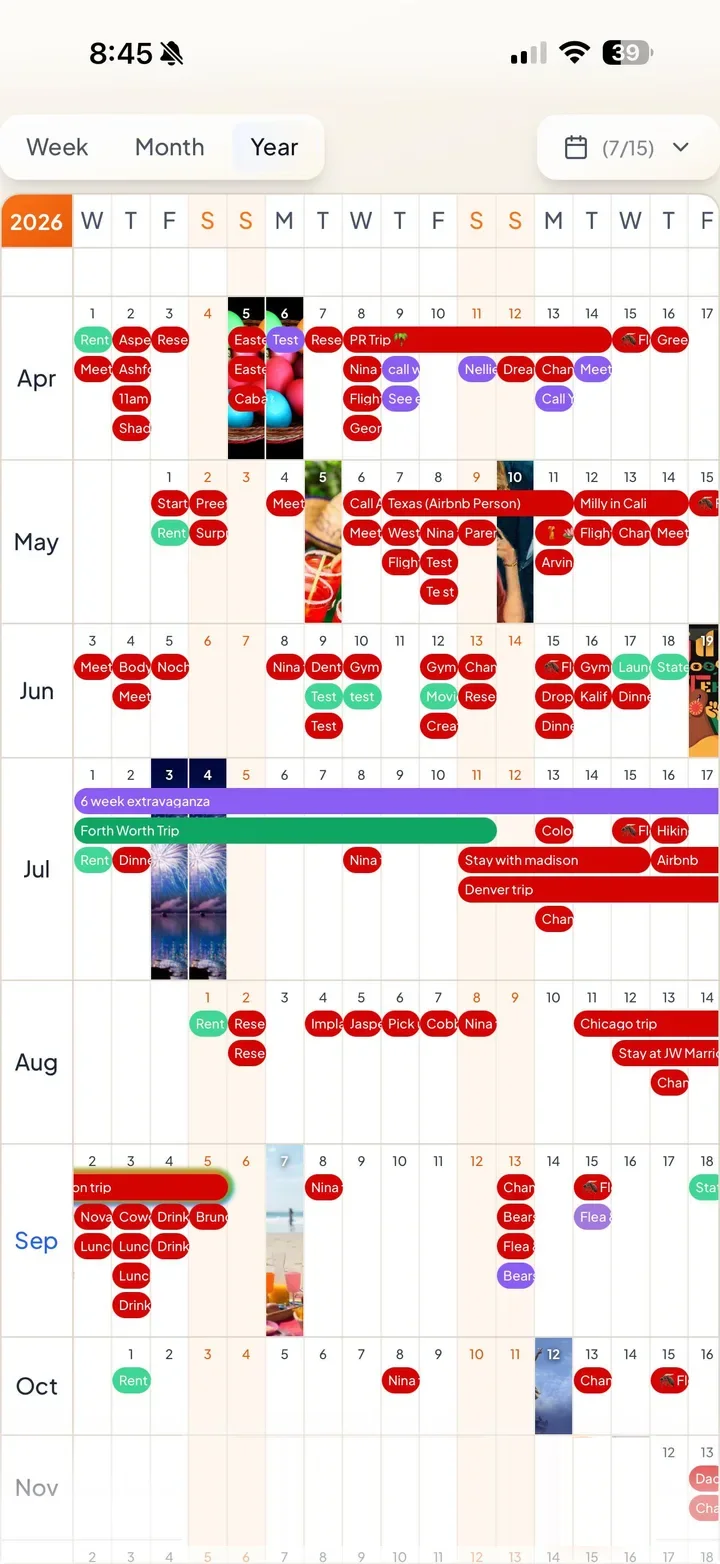
One calendar per child, grouped the way your week works
A family calendar fills up fast: swim on Tuesdays, the dentist, the school play, your own work. Instead of one grid with everything piled on it, give each child or activity a calendar. Open the Calendars dropdown on the calendar page and tap + next to My Calendars. Double-tap a calendar's name to rename it, or its color dot to change the color.
Then group them. Long-press the six-dot handle next to a calendar, drag it into the New Group box that appears, and name the group, say "Kids" or "Sports". The eye icon next to a calendar or a group shows or hides it, so on a busy morning you can look at just the school run.
For practices and lessons, turn on Repeat, choose every week and tap the days, so Monday and Wednesday practice is one entry. If the schedule changes mid-season, Conmigo asks whether your edit is for one date or the whole series.
School term dates and team schedules that update themselves
Many schools, clubs and leagues publish their calendar as an iCal or webcal link. Add it once and the dates appear on your calendar and keep themselves current. Go to Settings → Calendars & Events → Synced Accounts → iCal / Webcal Link, tap + Connect, paste the address, and give it a name like "School terms". These events are read-only, since they belong to whoever publishes the feed. You can refresh, pause, rename or remove the subscription from the same screen.
A one-off .ics file, like a tournament schedule sent by email, can be imported from there too (Import, the upload icon on a phone), up to 50 events per file.
Privacy levels for what each person sees
Families share differently. Your partner may want the full picture. Grandparents may only need to know which weekends are taken. A teenager may want their plans to show as busy and nothing more.
When you share (Calendars dropdown → share icon next to Shared with me → Share mine), you pick the people, the calendars, and one of three levels: Full Details, Title & Time Only or Busy Slots Only. Each level shows a preview of what they'd see before you share. A single event can differ from its calendar: open it, go to Calendar Visibility, and pick another level, or Not Visible to Others for the present you're hiding. To change a level later, or stop sharing, go to Settings → Calendars & Events → Shared Calendars.
Relatives without the app, and a copy for the fridge
Not everyone in the family will download another app. For a birthday party or a holiday dinner, open the event's Invite Link and send it. Whoever opens it sees the details in their browser and can RSVP by typing their name, with no account or download. Guests can opt in to text updates, and you can send everyone a text blast from the event when plans change.
For the kitchen wall, Settings → Calendars & Events → Exports & Subscriptions → Export PDF prints a week, a month, a year, or a year poster at the paper size you choose. Pick which calendars go on the page, so the fridge copy can show the kids' calendars and leave out your work.
How to set it up
- Go to conmigo.io or open the iPhone app and tap Get Started.
- Connect the calendars you already use under Settings → Calendars & Events → Synced Accounts.
- Make a calendar for each child or activity from the Calendars dropdown, and drag them into groups.
- Subscribe to school and team feeds under iCal / Webcal Link.
- Add family members on the Who tab (Add your people; a Family group is already there) and share calendars with each, choosing a privacy level.
Frequently asked questions
- Can my kids have their own accounts?
- From age 13, and until 18 with a parent's or guardian's consent. For younger children, keep their calendars in a parent's account and share them with whoever needs to see them.
- Can we add the school calendar?
- Yes, if the school publishes an iCal or webcal link. It then updates on its own.
- Does everyone need an iPhone?
- No. The iPhone app is free, the web app works in any browser, including on Android, and invite links open for anyone. There is no Android app.
- What does it cost?
- The iPhone app is free. On the website, each account is free with one connected calendar account (Google, Outlook or Apple) and unlimited calendars inside it. Each extra connected account is a one-time $10. There's no subscription.