

Find a time that works for everyone
Updated November 2026
In Conmigo, the people you're planning with share their calendars with you, you turn on Compare schedules, and every shared calendar turns one color so the open slots stand out. Anyone who isn't on Conmigo can RSVP through an invite link, without an account or a download.
Let calendars answer instead of people
Finding a date usually means everyone typing out their week and one person lining up the replies. But most people's calendars already know when they're busy. Conmigo uses that.
Start by connecting the calendar you actually live in: Settings → Calendars & Events → Synced Accounts, then Google, Outlook or Apple Calendar. (Apple asks for an app-specific password, and Conmigo shows how to make one.) Your events resync every five minutes, so what friends see stays current.
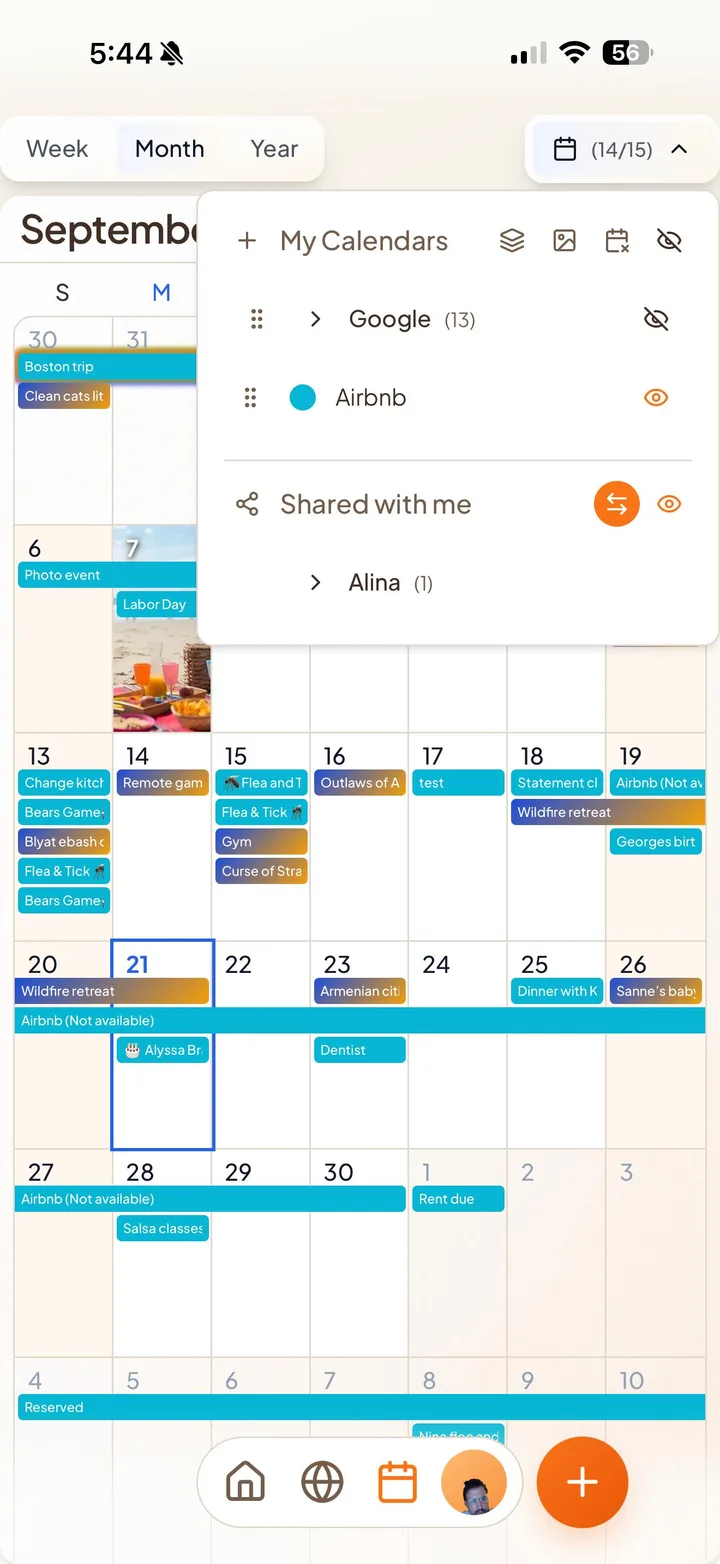
Then share. Open the Calendars dropdown, tap the share icon next to Shared with me, and on Share mine pick the friends and the calendars. For finding a time, Busy Slots Only is all anyone needs: they see the blocks when you're busy and nothing about what's in them. To get a friend's calendar, switch to Ask for theirs. They see your request in Notifications and can say yes in a tap.
Turn on Compare schedules and read the gaps
With calendars shared, open the Calendars dropdown on the When tab and turn on Compare schedules. Every shared calendar you can see flattens into one contrasting color, and you can pick that color yourself. The empty space is when everyone is free.
Only visible calendars are compared, so narrow it to the people in this plan. Calendars shared with you sit together under each friend's name, and the eye icon next to a calendar or group hides it. Planning with three people out of ten? Hide the other seven.
Include people who aren't on Conmigo
Some of the group won't have an account, and they don't need one. Make the event and send its Invite Link, or tap Send Invites to text or email each person a personal link from your own messaging app. They open it in any browser and RSVP with their name, with no sign-up and no download. If they do have the app, the link opens it.
Replies show up on your event as they come in, and friends you invited from your list show their answer as a colored ring on their avatar.
From an open slot to a plan
Once you've found the gap, make it real. Press and hold an empty spot on the calendar and drag across the time you want; the new event form opens with the time filled in. Or tap the orange +. Add people under WHO, a place under WHERE, and a reminder if you like.
Plans still move. Press and hold the event and drag it to the new day; an Undo appears if you change your mind. Guests who opted in to texts hear when the time or place changes.
How to set it up
- Create an account at conmigo.io or in the iPhone app (Get Started).
- Connect your calendar under Settings → Calendars & Events → Synced Accounts.
- Add the people you plan with: Who tab → Add your people.
- Share your calendar (Busy Slots Only is enough) and ask for theirs.
- Turn on Compare schedules in the Calendars dropdown on the When tab.
- Pick a gap, create the event, and invite friends directly and everyone else by Invite Link.
Frequently asked questions
- Do my friends have to show me their whole calendar?
- No. Busy Slots Only shares when they're busy and nothing else, and any single event can be hidden completely.
- Can people without an account join in?
- Yes. Through an invite link, anyone can see the plan and RSVP with their name, without signing up or installing anything.
- Does it work with Google Calendar and Outlook?
- Yes, both ways, and with Apple Calendar too. Changes you make in Conmigo go back to the original calendar, and changes made there come in.
- Is it free?
- Guests using an invite link pay nothing. The iPhone app is free. On the website, each account is free with one connected calendar account (Google, Outlook or Apple) and unlimited calendars inside it. Each extra connected account is a one-time $10. There's no subscription.