

Plan a group trip in one shared itinerary
Updated November 2026
In Conmigo, a group trip is one event that holds every stop inside it, from the flights to the dinners to the day hike, so the whole plan lives in a single itinerary instead of across five chats and a spreadsheet. You share it with one link that opens in any browser, guests answer without an account, and you can text everyone who's going when something changes.
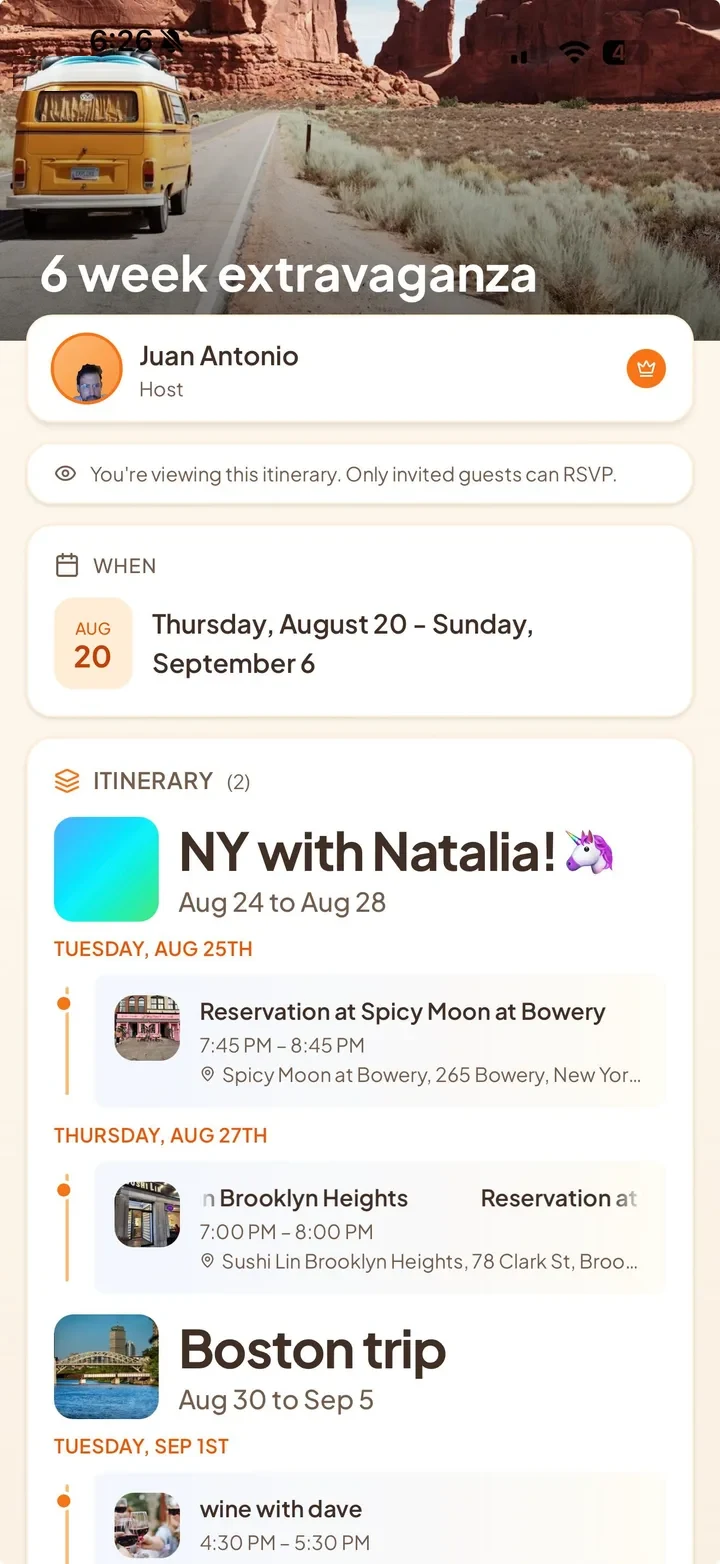
One trip, every stop inside it
A trip is a set of smaller plans, and some of those have parts of their own. Conmigo nests them up to three levels: a trip can hold a day, and a day can hold a dinner. Start with one event for the whole trip and set its dates. To begin the itinerary, long-press one of your events on the calendar and drag it onto the trip. From then on, open the trip, scroll to Itinerary and tap Add: tick events that fit inside the trip's dates, or tap Create event to make one that opens already set within them. Drag items to reorder.
Build it from what you already have
Most trips start as a pile of confirmations. Open the trip and drop in a link, paste a screenshot of a schedule, or upload a spreadsheet or a PDF. Conmigo pulls out a day-by-day itinerary and shows it to you first: name the trip, untick anything you don't want, choose the calendar, and only then is it added. If someone sends an .ics file that spans several days, you can import it as an itinerary instead of separate events.
Crossing time zones? The event editor shows which time zone you're typing in, next to the All day switch, and lets you change it, so a 9 pm dinner in another city can be entered as 9 pm.
Everyone adds what they're doing
A group trip shouldn't rest on one person. Anyone you've invited on Conmigo can open the trip's itinerary, tap Add, and put in one of their own events that fits inside it, like the flight they booked. You get a notification when someone adds to your trip, and they can take their own event back out with the X.
The talking happens on the trip itself. Everyone who has RSVP'd can comment, reply, react and post photos or GIFs, so the restaurant debate isn't buried in a chat. And since Conmigo keeps a copy of your calendar on your phone, the itinerary is still there on a plane or with no signal; edits you make offline are sent when you reconnect.
Share it with people who don't have the app
To show the plan without asking for replies, tap Share above the itinerary. Conmigo makes a view-only link anyone can open, and Turn off link stops it working. To get answers, tap Send an invite instead, or send the trip's Invite Link. Guests see the cover, dates, place, description and the full itinerary in their browser, and RSVP with their name. Once they accept, an Add to calendar button saves the trip to their own calendar app.
When plans shift, open the trip and use Compose Text Blast: choose who gets it by RSVP status, attach a photo if it helps, and send. Guests who opt in to texts from the RSVP page also hear when the time or place changes.
How to set it up
- Tap the orange + and create an event for the whole trip, with its dates and destination.
- Start the itinerary: drag one of your events onto the trip, or drop in a link, screenshot, spreadsheet or PDF.
- Open the trip, scroll to Itinerary, and tap Add for each further stop.
- Invite the group: friends on Conmigo with the + under WHO, everyone else by Invite Link or Send Invites.
- If you also want a read-only page, tap Share above the itinerary and copy the link.
Frequently asked questions
- Do my travel companions need the app?
- No. Invite links and shared itinerary pages open in any browser, including on Android, and guests answer with just their name.
- Can I print the itinerary?
- Yes. Settings → Calendars & Events → Exports & Subscriptions → Export PDF. Pick Week or Month and a period that covers the trip, and turn on Child events and Grandchild events.
- What if the trip, or one plan in it, is cancelled?
- Delete a single item like any event. Deleting the trip asks whether to Delete all or Keep itinerary items, so the stops can stay on as events of their own.
- What does it cost?
- Guests who join through a link pay nothing and need no account. The iPhone app is free. On the website, each account is free with one connected calendar account (Google, Outlook or Apple) and unlimited calendars inside it. Each extra connected account is a one-time $10. There's no subscription.